Attendance List (Live)
The attendance list (menu item Dashboard → Now → Present) shows you the current status of all employees in real time. You see at a glance who is currently present at which property, who is absent, and when the last status change occurred.
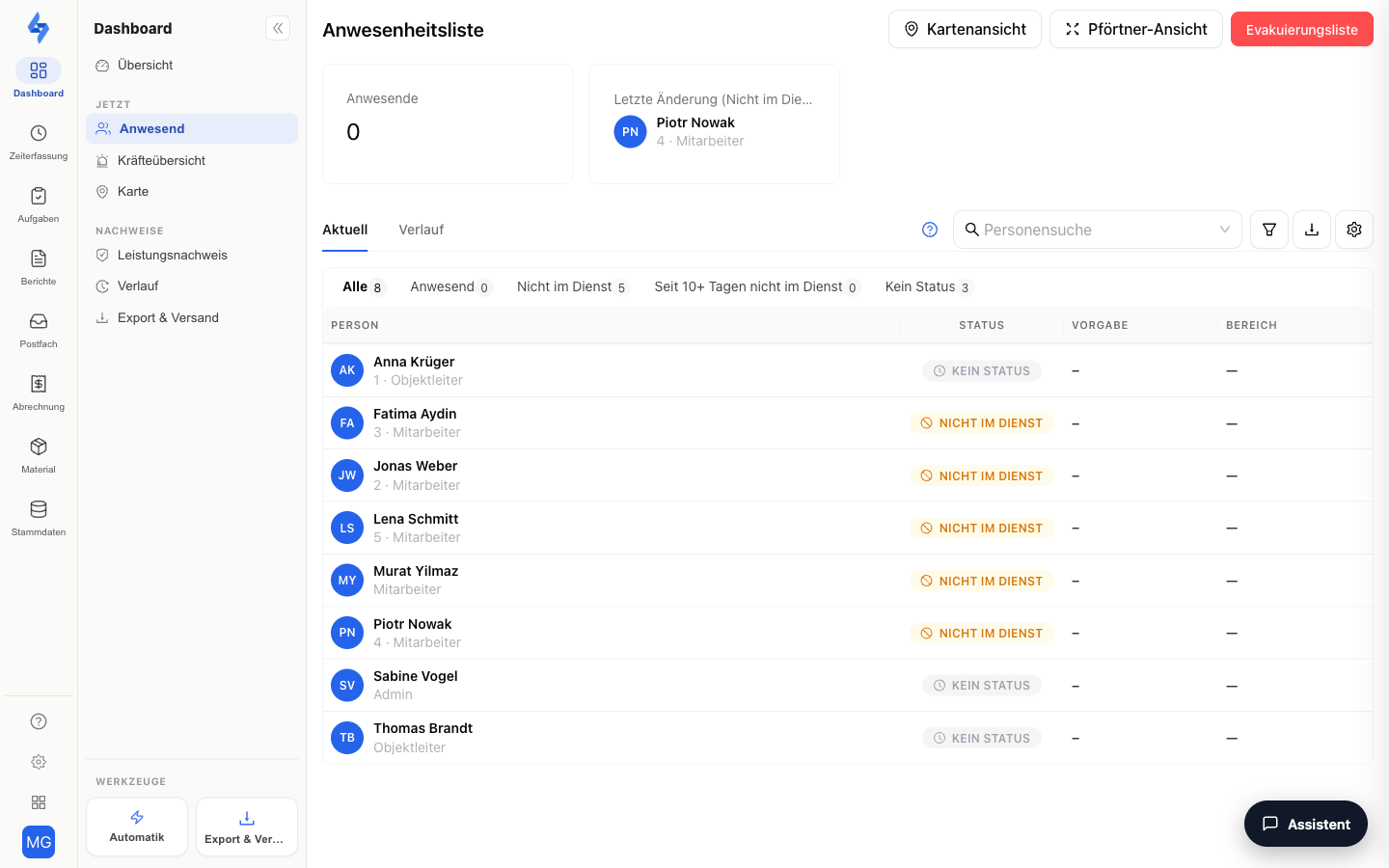
Features Overview
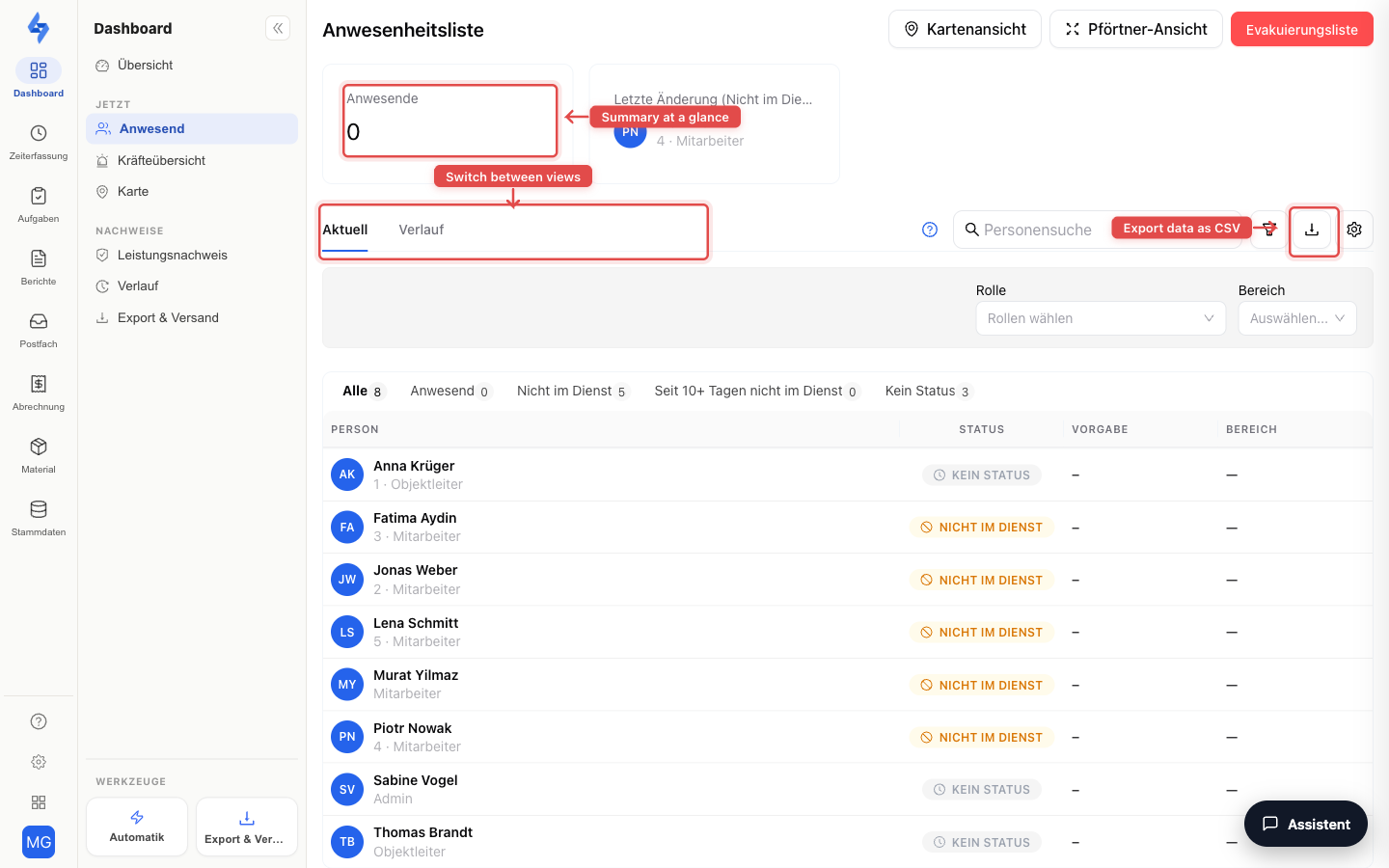
Views
This page offers you two views, which you can switch between using the tabs:
- Current — Shows the live status of all employees with current attendance status, shift, and property. The data is updated automatically in real time — no manual reload is needed.
- History — Shows a monthly overview matrix of attendance for all employees.
Key Figures
At the top of the page you will find overview tiles:
- Present — Click this tile to jump directly to a filtered view of all currently working employees.
- Last change — Shows the most recently recorded person. Clicking opens the guard view with details and history.
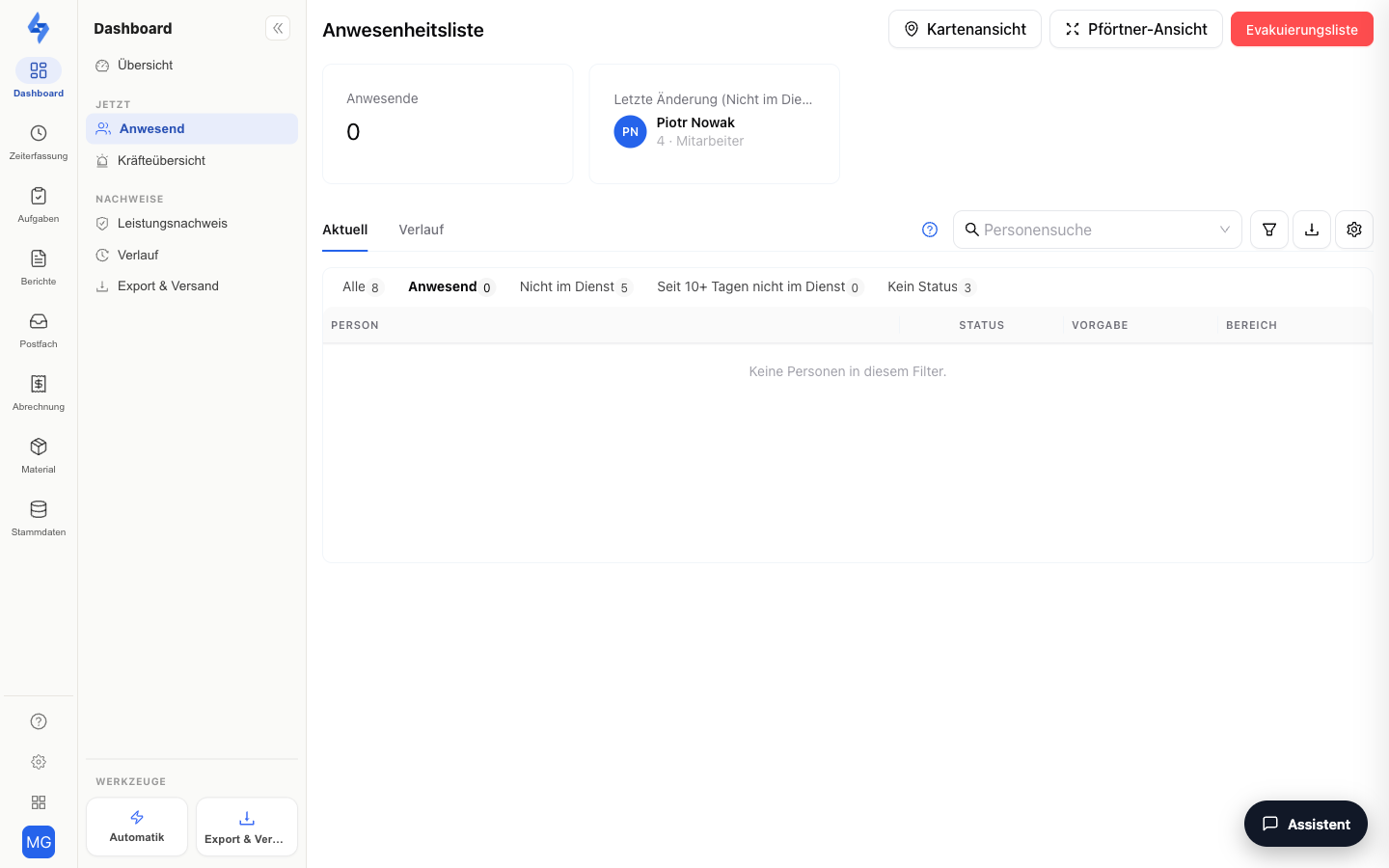
Header Buttons
| Button | Function |
|---|---|
| Map view | Switches to the live map with all properties and device locations. The button is only visible if you have the View live map permission. |
| Guard view | Opens a large-format view of the most recently recorded person — ideal for reception or the control center. Details: Guard View |
| Evacuation list | Red button: brings up the current list of all present persons at a property in an emergency. Details: Evacuation List |
| Columns (gear) | Shows or hides individual table columns. |
| Export | Exports the displayed data as a CSV file — e.g. for payroll or external systems. |
Status List
The status tabs above the table filter by attendance status — each with a counter:
| Tab | Meaning |
|---|---|
| All | All employees |
| Present | Currently checked in |
| Absent | Last check-out within the last 10 days |
| Absent 10+ days | Last check-out more than 10 days ago |
| No status | Never recorded |
For each person, the table shows: Status, Shift (if assigned), Property, Location, and actions (e.g. open the person's history).
Force Overview (Depending on Plan)
If the Force overview is enabled for your account, the following are added:
- Table / Map — switcher directly above the list: display the persons either as a table or with their live status on a map.
- Notice bar — a status bar appears above the list (e.g. "No incidents – all clear.") with current exceptions.
- Set status — use the Status action to assign a personnel status to a person (you manage the status definitions in the settings). This requires the Configure force overview permission.
- Proof of life — a dedicated column shows the proof-of-life state for lone working.
The Sidebar on the Left
On the left you find the time views — Times, Unit, Planning, Current and History — and below them the Filter section with the object selection. One click on an object narrows the list right away, All objects clears the restriction again; the magnifier searches long lists. The full description is on Attendance Control.
More Filters in the Header
Click the filter icon to open the advanced filters:
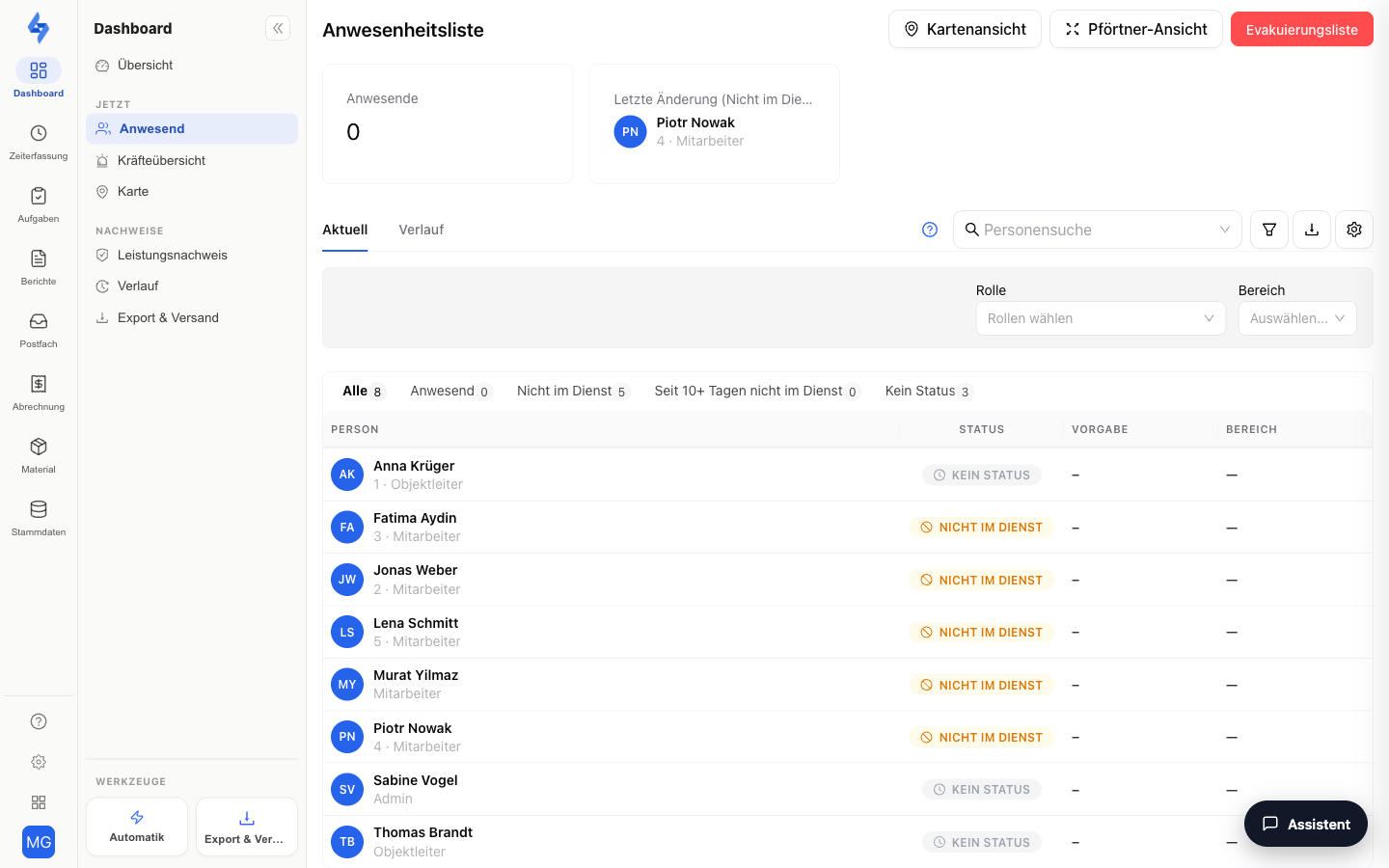
| Filter | Description |
|---|---|
| Person search | Search for an employee's name |
| Role | Shows only entries of a specific role |
| Property | Filters by a specific property/site |
| Status | Via the status tabs (Present, Absent, Absent 10+ days, No status) |
| Date range | In the History tab: start and end date of the monthly matrix |
Good to Know
:::tip Note The live view is updated via a real-time connection. You see status changes immediately without having to reload the page. The monthly view, on the other hand, shows historical data and is loaded when switching tabs. :::
:::tip Note Employees are grouped into four categories based on their status: Present (currently logged in), Absent (last check-out within the last 10 days), Absent 10+ days, and No status (never recorded). :::
Permissions
:::info Permission To use this page, you need the View time tracking permission. Contact your administrator if you do not have access. :::
| Action | Permission |
|---|---|
| Open the page | View time tracking |
| See other employees' data | View others' time tracking |
| Open the map view | View live map |
| Export data | Export time tracking |
| Set personnel status (force overview) | Configure force overview |
| Edit employees | Edit employees |
:::info Mobile App This feature is also available in the mobile app. In the app, you can find the attendance list in the "Time" tab. :::