Work Time
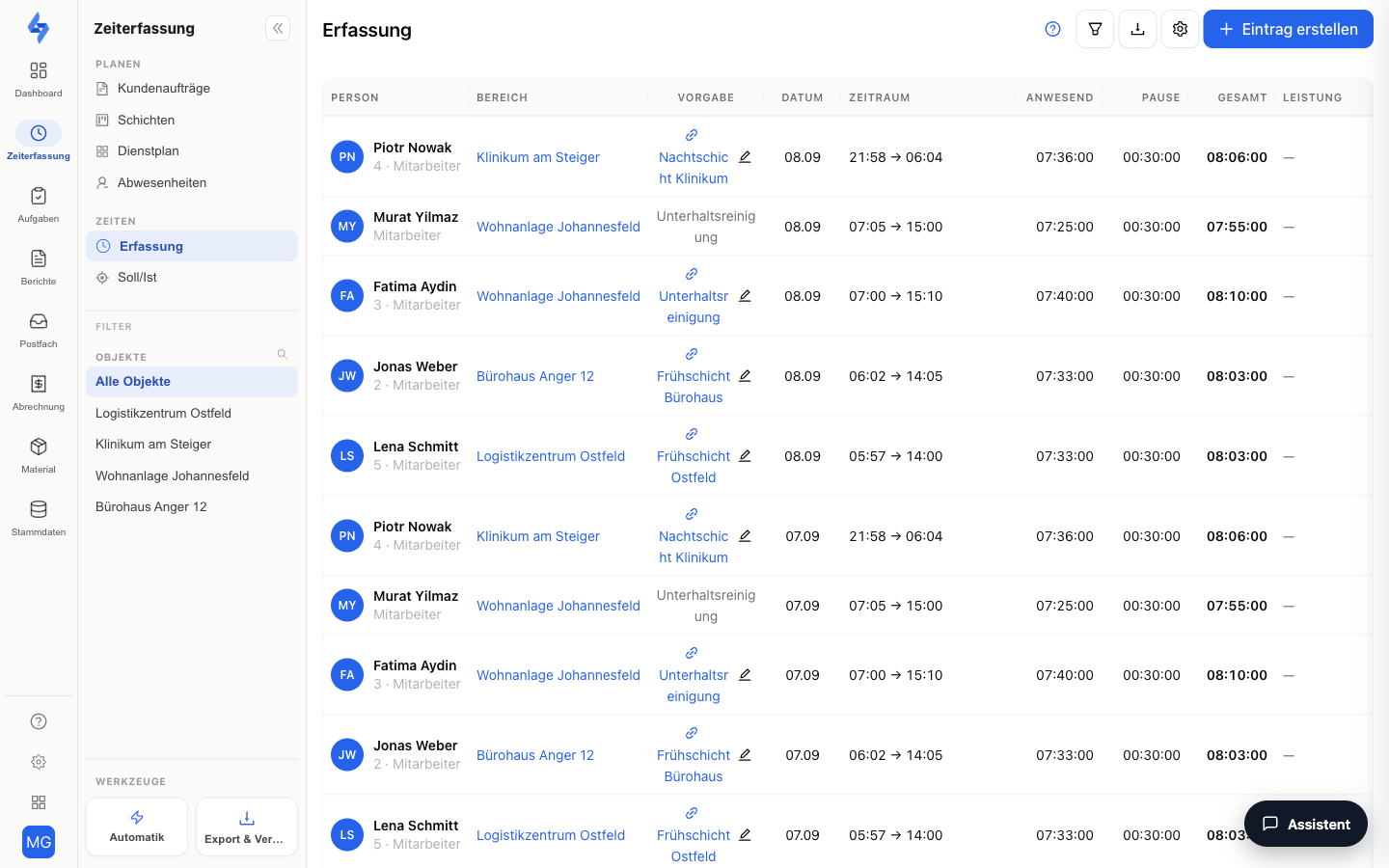
On this page (area Time tracking, first menu item — labeled "Zeiterfassung" for accounts created through guided setup; the label follows your hierarchy alias, and without a custom alias it reads "Times") you manage your employees' work time entries. You see all recorded work times in a clear table — with start and end time, breaks, total duration, and current status. The data is updated in real time.
:::info Download PDF Checklist: Time Tracking Software — Selection Criteria — find more materials in the media library. :::
What Is This View For?
This view is the central place to review the actually recorded work times of all employees, add missing entries manually, correct them, and export them — as the basis for payroll/billing and as evidence. It answers questions like:
- Who worked when, for how long, and at which property?
- Was the employee on time, and does the GPS location match the property?
- I need to add or correct a forgotten/incorrect time entry.
This page is about recorded actual times. You evaluate the planning (shifts) and its fulfilment in the Shift Log; the current live state is shown by the Attendance List (Live).
Features Overview
Work Time Table
The table shows all work time entries with the following columns:
| Column | Description |
|---|---|
| Employee | Name (and role) |
| Property | Place of work |
| Date | Day of the work time |
| Time span | Start and end time as HH:mm → HH:mm; running entries show a clickable "End" |
| Present | Effective presence time = total minus break |
| Break | Total break time |
| Total | Full duration from start to end. Shown in red if it exceeds 24 hours — an indication of an implausible entry (e.g. forgotten check-out). Bold only when Total differs from Present (i.e. with a break) |
| Plan | Planned window of the linked shift as HH:mm → HH:mm; the shift name (e.g. "Night shift") is in the tooltip, clicking opens the shift detail view. If no shift is linked but exactly one scheduled shift of the property fits the entry's time window, the column shows that window automatically (grey). If several shifts fit, it shows the number of candidates. For a linked or ambiguous shift a pencil icon appears when hovering the row to reassign; if no shift fits, it stays "–" and you assign inside the entry itself |
| Difference | Present minus planned duration (actual − plan), signed. Coloured from ±15 minutes: less than planned red, more than planned orange |
| Status | Approval state of ended entries: Confirmed (name and time in the tooltip) or Open — see Confirming |
The columns Plan, Difference and Break hide automatically while the loaded page has no values for them — as soon as you pick columns yourself in the column menu (gear), your choice wins; Reset returns to the automatic mode.
Missing times are not found here but under Operations with a period in the past in the No check-in tab ("Record time") or under Work days (plan without actual). | Service | Recorded services of the entry as colored badges (service type, possibly quantity and unit; "+N" for multiple). You manage the service types under Settings → Service types |
Use the gear icon to show or hide individual columns (saved in the browser). Click an entry to open the detail view in a side panel.
Detail View
The side panel shows comprehensive information about a work time entry:
Summary:
- Start and end time in the employee's time zone
- Status (running or completed)
- Date
- Key figures: presence time, break duration, total time
- For running entries: live counter of the current work time
Timeline: The timeline shows all status changes of the entry in chronological order:
- Events — Started, Completed, Paused, Resumed, and Automatically linked — <shift> (when the work time was automatically assigned to a shift) — each with a timestamp and, where applicable, a punctuality badge (EARLY / ON TIME / LATE)
- Source — Where the event came from: device (app), manual (by an admin), system (automatic), or resync
- Editor — For manual changes, the administrator who performed the action is shown
- Reason — If a reason was recorded (e.g. for exceptions or system actions)
- Location — With location check enabled: button to open the "GPS locations" map view with GPS position and ONSITE/OFFSITE status
- Zone events — With zones configured: entering and leaving a zone or the property area with timestamp, plus "Location tracking interrupted" if the app's position stream broke off
- Offsite counter — The number of events with OFFSITE status is highlighted
- Manipulation flags — If the device reports the position as simulated (mock GPS, Android only) or a location change is physically implausible, the row shows a red icon with an explanatory tooltip; a summary alert above the timeline counts the affected entries. Details: Tamper protection
From the detail view you can edit, end, or delete the entry directly — and assign it to a different shift via "Change shift".
Recording Services
For each work time entry, performed services can be documented — e.g. "Deep cleaning, 3 floors". For each service you record the service type (from the catalog under Settings → Service types), optionally quantity, unit, duration, and a note. The services appear in the Service column of the table.
Creating a Work Time Entry
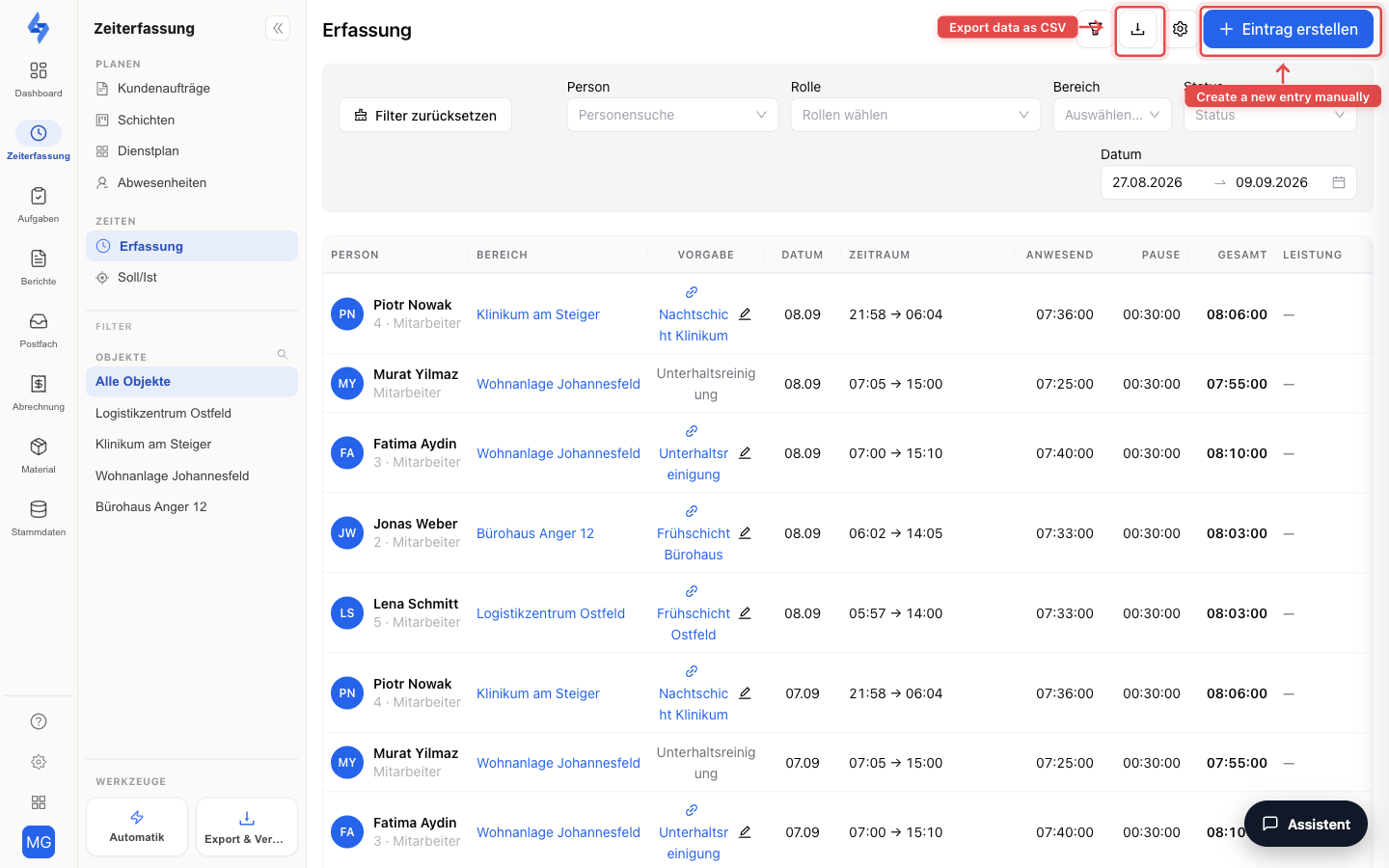
Click the "Create entry" button to create a new work time entry manually. Alternatively, you can open the create dialog directly via the URL parameter ?wtCreate=1.
The create dialog asks for the following details:
| Field | Required | Description |
|---|---|---|
| Property | Yes | Select the place of work (omitted if already preselected) |
| Employee | Yes | Select the employee via dropdown search |
| Work shift | No | Optionally assign to a shift (selection matching the chosen property) |
| Date | Yes | Date of the work time (DD.MM.YYYY) |
| Start time | Yes | Start of the work time (HH:mm) |
| End time | Yes | End of the work time (HH:mm) |
| Break | No | Quick selection (0, 15, 30, 45, 60 min.) or custom minute input. Default: 0 min. |
Additional features in the create dialog:
- Net work time — Calculated automatically from start, end, and break and displayed
- Night shift detection — If the end time is before the start time, the system automatically detects a night shift (next day)
- Same as last — Button to auto-fill date and times from the selected employee's last entry
- Duplicate detection — If the entry overlaps with the employee's existing work times, a warning appears. Clicking "Create entry" again saves the entry deliberately anyway.
Confirming (approval)
Ended entries can be confirmed — for example before payroll. Confirmation is a tenant switch and off by default: enable it in the Features under For the company → Work time approval. Without the switch the list shows neither checkboxes nor the Status column, and the status filter does not know the approval. To confirm you need the Edit time tracking permission.
- Single: The entry's detail view shows a Confirm button. A confirmed entry shows Revoke confirmation instead; revoking requires a reason that is written to the change log.
- Several: Select ended, still open entries in the table via the checkboxes and click Confirm in the selection bar. Running and already confirmed entries cannot be selected.
- Lock: A confirmed entry is a statement about exactly the times that were seen. Any later change (editing, ending, changes via the public API) revokes the confirmation automatically and is noted in the change log as "confirmation dropped". The device recalculation (sync) no longer touches confirmed entries.
- Filter: The status filter knows Confirmed and Not confirmed (ended, but without approval).
Editing & Ending a Work Time Entry
- Edit — Change the start, end, and break times of an existing entry. The edit dialog can also be opened directly via the URL parameter
?wtEdit={uuid}. - End — End a running entry. Choose between "End now" (current time) and a manual end time. Breaks can be specified via a quick selection. The end dialog can also be opened directly via the URL parameter
?wtEnd={uuid}. - Delete — Remove an incorrectly created entry.
Change Reason and Change History
Editing, ending an entry retroactively, and deleting all require a change reason (mandatory field, free text up to 500 characters) — without a reason the action cannot be saved. Each of these actions creates a history entry with the acting person, a server-side timestamp, and the reason; edits additionally record the changed values. You can trace this in the timeline of the detail view (editor and reason, see above) and in the Activity log. Only the manual creation of a new entry does not require a change reason.
Data Export & History
- CSV export — Export the displayed work times as a CSV file via the export button for further processing in external systems.
- PDF export — Create a PDF report of the work time data for documentation or sharing.
- History button (clock icon) — Jumps to the Activity log, pre-filtered to time tracking events (shifts, check-ins/outs, deliveries).
Operations View
Next to the time tracking list, the sidebar offers the dedicated Operations menu item (also reachable directly via the URL parameter ?view=target). It compares planning against recording: target is the planned shift hours from the duty roster, actual is the work time recorded in the period.
The view shows the shift log: every planned shift with its staffing and fulfilment status — you see at a glance which shifts were understaffed or not fulfilled as planned. Clicking a row opens the shift detail view. A dedicated filter row narrows down by property, person, and period.
The hour-based comparison per person (contractual target from the work schedule against the recorded actual time, including the time account) lives on the employee detail page in the Working time area, and centrally under Settings → Work schedules.
:::info Visibility The Operations menu item only appears if you hold the View others' time tracking or Edit time tracking permission — the view names hours of arbitrary colleagues. :::
The Sidebar on the Left
On the left you find the time tracking views — Operations, Time tracking and Present — and below them the Filter section with the object selection. Planning (shifts, duty roster, absences) has its own Planning area in the sidebar. One click on an object narrows the table right away, All objects clears the restriction again; the magnifier searches long lists. The full description is on Attendance Control.
More Filters in the Header
Click the filter icon to open the advanced filters:
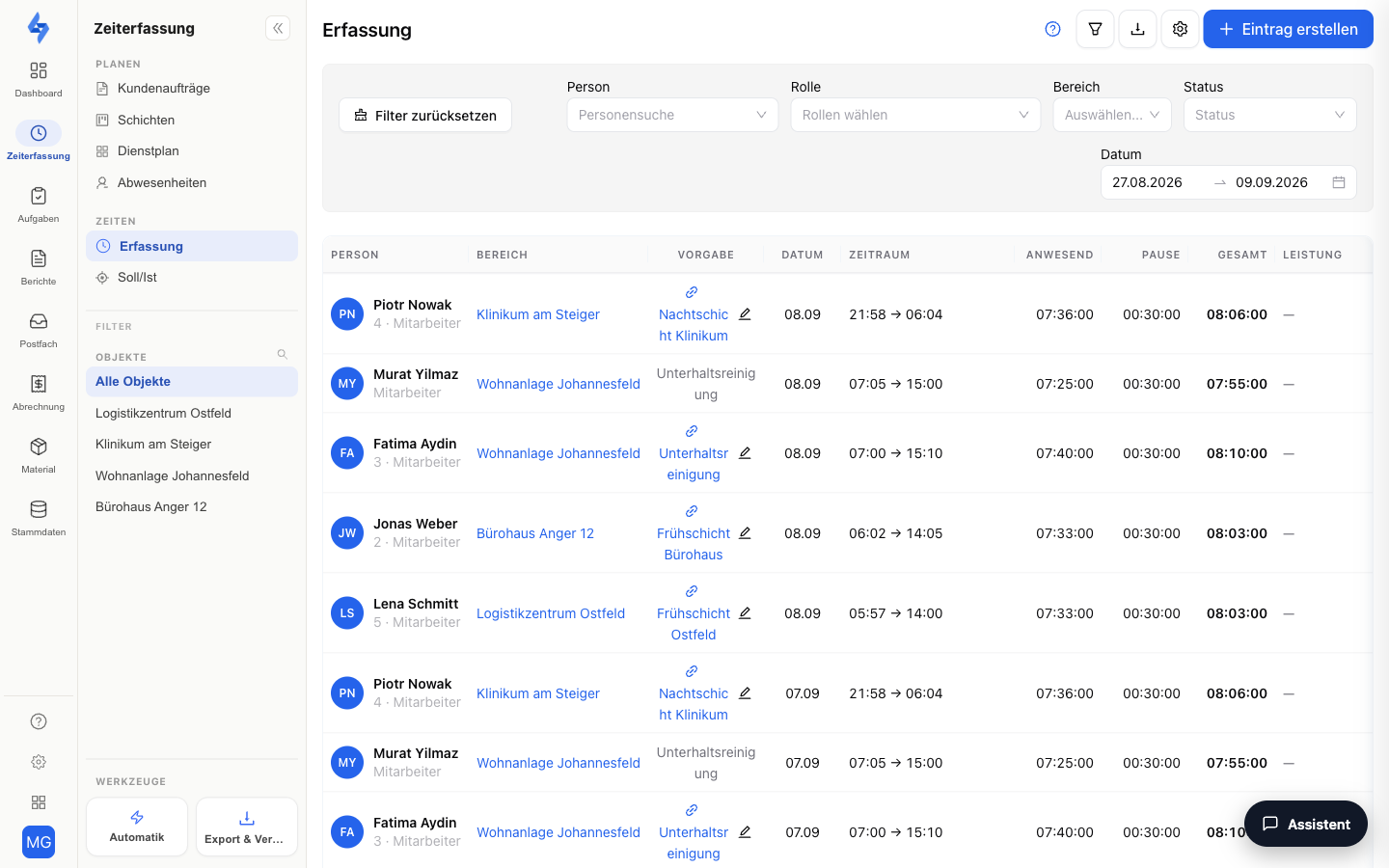
| Filter | Description |
|---|---|
| Person search | Search for an employee's name |
| Role | Only entries of a specific role |
| Property | Only entries of a specific property/site |
| Status | All, Checked in (running entries), or Checked out (completed entries) |
| Date range | Start and end date (default: last 14 days, max. 62 days) |
Use Reset to remove all set filters at once.
Good to Know
:::tip Note
- The system automatically checks whether a new entry overlaps with the employee's existing work times and warns before saving. The warning can be deliberately overridden.
- Each property can define a minimum break time. If you end a work time with less break than required, the break time is automatically raised to the minimum value.
- Work times are automatically linked to planned shifts — see Linking with Shifts below for details.
- Note the check-in methods: The available check-in methods (NFC, QR code, GPS, button) are configured per property in the time tracking settings. Methods that are not enabled are not offered in the mobile app.
- Automatic ending: Open work times can be ended automatically by the system — either at a fixed time or after a certain duration. This setting is configured per property. Details under Automatic Ending (Auto-Close). :::
:::info Mobile App This feature is also available in the mobile app. In the app you can start, stop, and retroactively add work times — even offline. :::
Linking with Shifts
If shifts are planned for a property, the system automatically links work times to the matching shift. This lets you see directly whether an employee was on time and how large the deviation from the shift time is.
How the Linking Works
The assignment happens in four ways:
| Method | When | Description |
|---|---|---|
| Automatically at check-in | Immediately | When a work time starts, the system detects the matching shift based on property and time |
| Periodic check | In the background | A background process retroactively links work times that could not be assigned to a shift at check-in |
| Manual assignment | By an admin | For manual check-in by a supervisor, the shift is assigned directly |
| On editing | After a change | If the start or end time of a work time is changed, the shift assignment is recalculated |
Punctuality Display
After linking, the system shows for each check-in and check-out:
- Punctuality status — Too early, On time, or Too late
- Deviation — The difference in minutes from the shift time (e.g. -30 min. = 30 minutes early, +10 min. = 10 minutes late)
Punctuality is measured against the shift start (for the check-in) and the shift end (for the check-out) — not against the window boundaries.
Details on the evaluation logic can be found under Attendance Control — Punctuality Evaluation.
Permissions
:::info Permission To open this page, you need the View time tracking permission. Contact your administrator if you do not have access. :::
| Action | Permission |
|---|---|
| Open the page | View time tracking |
| See other employees' work times | View others' time tracking |
| Create an entry | Create time tracking |
| Edit an entry | Edit time tracking |
| End a running entry | Stop time tracking |
| Delete an entry | Delete time tracking |
| Export data | Export time tracking |