Assignment List (Table View)
The assignment list is the table view of the page Planning → Shifts: via the switcher in the toolbar (calendar icon / table icon) you change from the calendar to a chronological list of all planned assignments — ideal for working through gaps, conflicts, and understaffing of the coming days one by one. The view is available on desktop and tablet; on smartphones, the page keeps showing the day list.
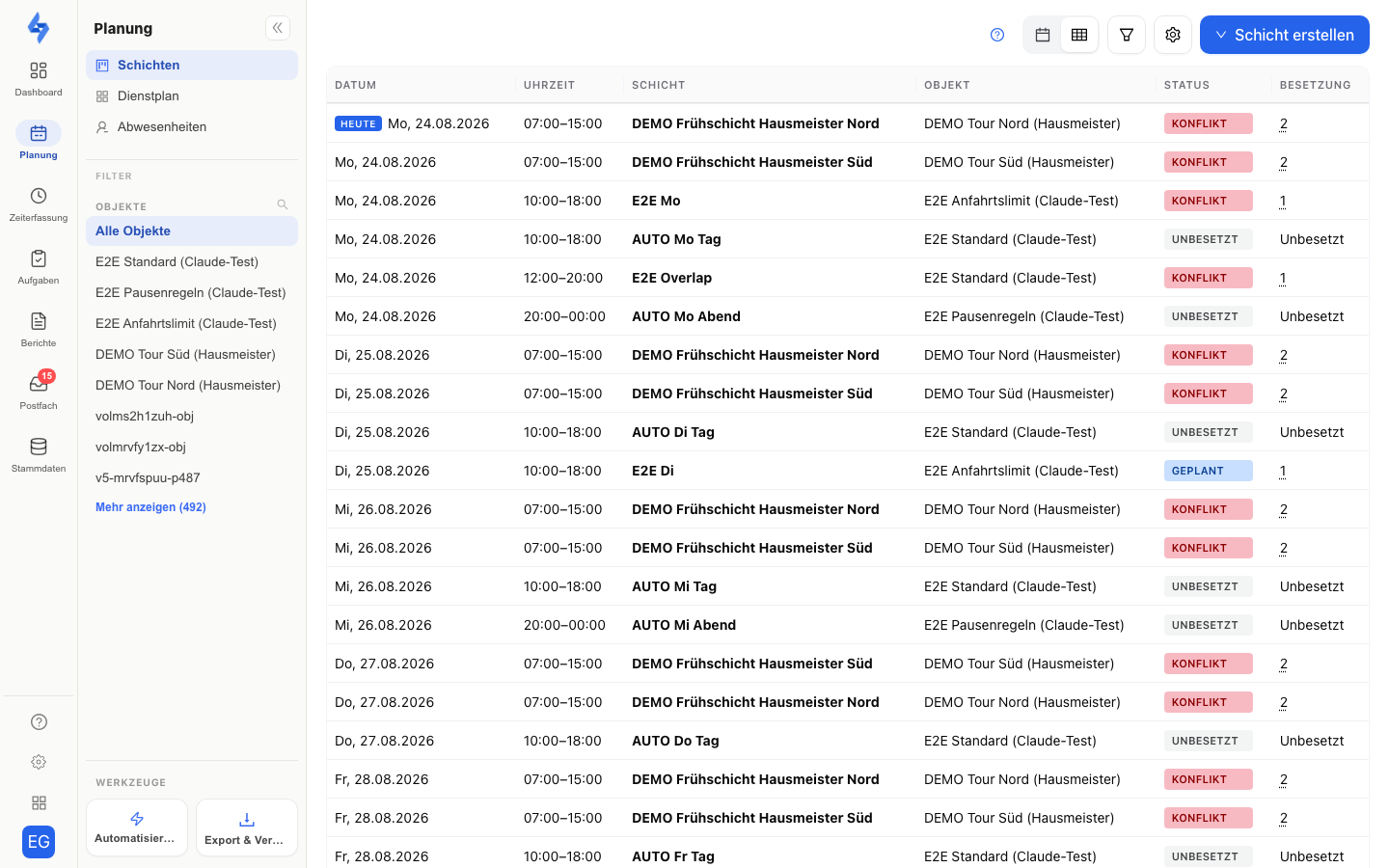
:::info Assignment vs. shift A shift is the (possibly recurring) series, an assignment is the individual occurrence of it. The assignment list shows assignments — each row is a concrete date with time and staffing. :::
Structure of the List
By default the list starts at today and runs chronologically into the future. The "Today" marker sits at the first row of the current day. You reach past assignments via the date range filter (see below).
| Column | Description |
|---|---|
| Date | Weekday and date; a dot marks public holidays (name in the tooltip) |
| Time | Start–end of the assignment |
| Shift | Name of the shift or series |
| Property | Place of assignment |
| Status | Badge: Scheduled / Unassigned / Conflict / Past / Cancelled — for conflicts, the tooltip names the reason (absence, double booking, working-time hint) |
| Staffing | Assigned people as actual/target — with a warning badge when understaffed; without a target only the actual count |
- Clicking a row opens the assignment — for editing, or read-only for past or started assignments.
- Use the columns button to show or hide individual columns; the selection is remembered.
- Paging works via the standard pagination below the table. If the loaded period does not cover the next page, the list automatically loads further future assignments.
Filters in the Filter Bar
The filter button opens the filter bar. All filters can be combined and are stored in the URL — the calendar of the same page shares the staffing and cancelled filters:
| Filter | Effect |
|---|---|
| Staffing | Only assignments in which the selected people are assigned |
| Date range | Shows exactly this period — including the past |
| Conflicts only (X) | Only assignments with conflict status; the counter shows the hits in the loaded period |
| Understaffed only (X) | Only assignments whose staffing is below target |
| Only unassigned orders | Only assignments without any staffing |
| Show cancelled | Includes cancelled assignments |
Reset clears all filters at once. "Conflicts only" and "Understaffed only" can be combined (AND logic).
Creating from the List
The dropdown menu of the "Create shift" button offers the same actions as the calendar toolbar:
- Create shift — opens the shift dialog
- Record absence — the same dialog as under Planning → Absences
- Import — the Excel/CSV import
- Copy week to … — transfers staffing and assignments of one week to one or more target weeks (with preview)
:::info Keeping staffing in view For week-based staffing planning with person rows, weekly hours, and absence bands, the duty roster (matrix) is the right view — the assignment list is the chronological control and work-through view. :::
Permissions
| Action | Permission |
|---|---|
| Open the assignment list | View time tracking |
| Create / import assignments | Create time tracking |
| Edit assignments, copy week | Edit time tracking |