Automation — Rules
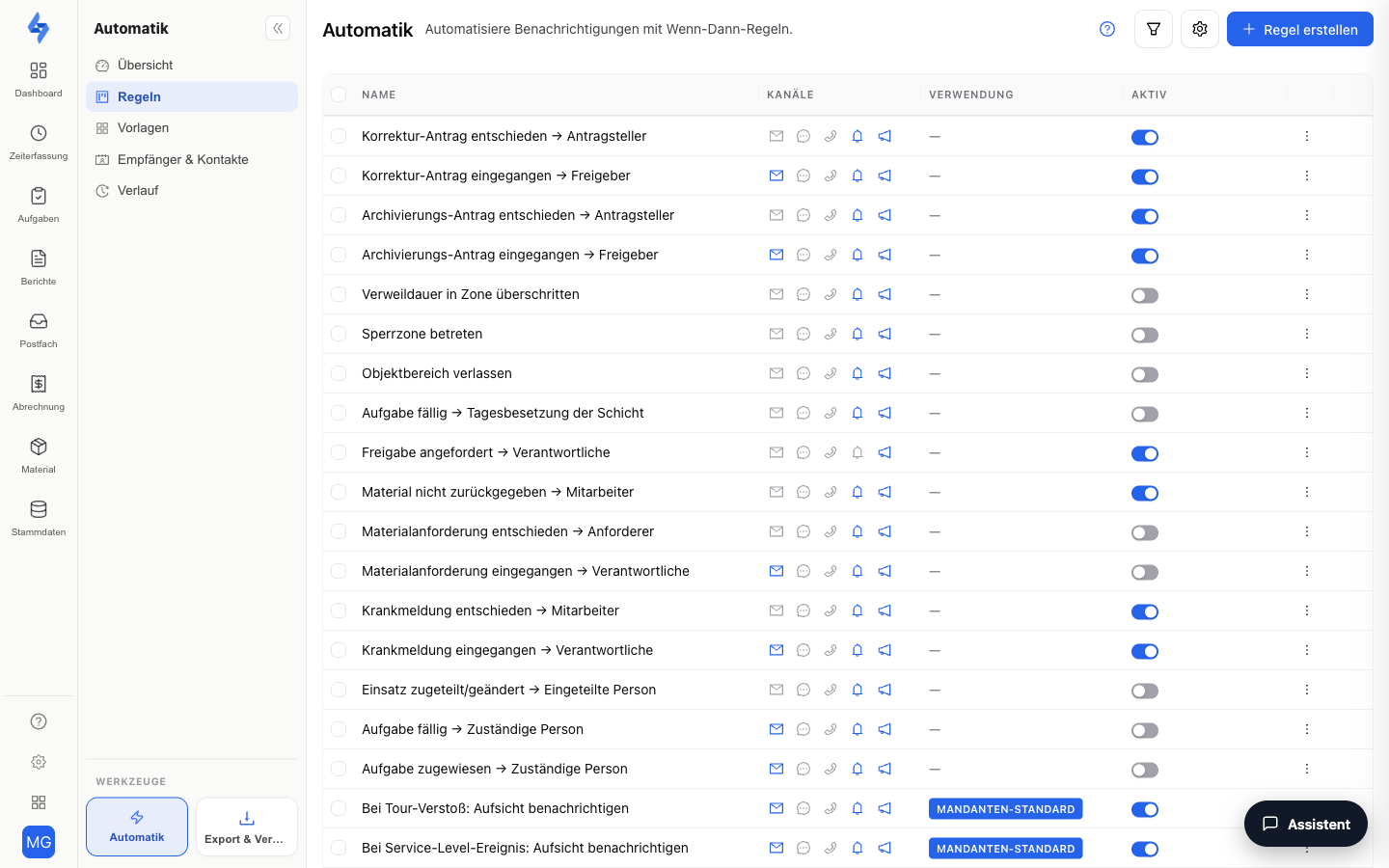
You reach the automation area via the Automation tile in the Tools group at the bottom of the sidebar — it is available there from every main area. In Time it appears only on pages with their own triggers (Operations, Live, operation detail, Absences), not on Entries, Work days, Roster and Calendar. The entry point first opens the Notifications overview: it shows the resolved outcome per event area ("What happens — and who receives what?") and contains the reaction defaults. The Rules menu item behind it is the hub for rule-based notifications and follow-up actions. Every rule follows the if-then pattern: a trigger (e.g. "Patrol missed"), optional conditions, and one or more actions. LiteLog does not prescribe fixed processes: you automate your own procedures and adapt them to your company — triggers, conditions, and actions are freely combinable building blocks. The rules overview shows at a glance which rules are active, who is notified, and via which channels.
:::tip Where did the "Notifications" tab go? The former property tab no longer exists. Event rules (missed patrol, missing control point, check-in missing) live here under Rules and per property under Property → Automation; the scheduled report dispatch lives under Property → Dispatch. If you get an e-mail for every photo, the delivered rule Control point scanned with photo → e-mail is switched on; it is off by default and can be switched off here with the toggle. :::
Features Overview
Rules Table
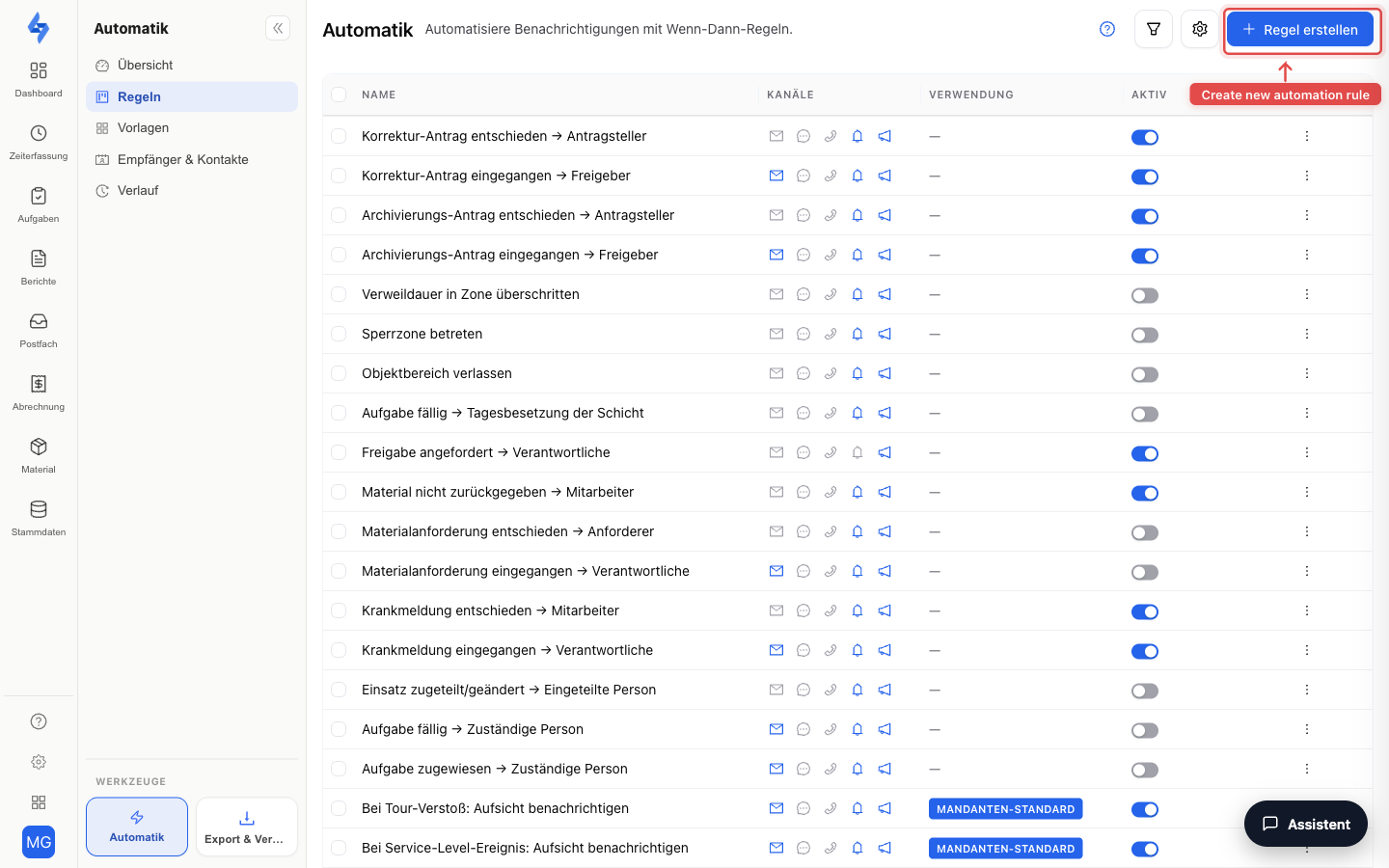
Each row is a rule. The table is grouped and sorted by area (attendance, safety, patrols, tasks, incidents, forms, material …) — the same order as the overview. The tabs above the table show a single area. Besides area, name and trigger, the table shows two key columns:
| Column | Content |
|---|---|
| Area | Which event family the rule belongs to; consecutive rules of one area share the cell |
| Recipients | Who is notified — role and person badges |
| Channels | How they are notified — email, SMS, call, push, in-app |
Use the toggle in the row to enable or disable a rule without deleting it.
Template Gallery
As long as the rules list is empty, the page shows a gallery of ready-made if-then chains from real-world practice, filterable by trigger area (e.g. round, incident, form, attendance, safety, task). Each card shows the rule's chain as a preview. Once rules exist, you reach the same templates in the workflow editor via "Use template". There are two ways to adopt a template:
| Button | What happens |
|---|---|
| Activate | For simple templates that already have an included (disabled) default rule: the existing rule is switched on directly — without a duplicate. |
| Set up | Opens the workflow editor with the fully assembled chain as a draft. You adjust recipients, wait times, and scope, then save. |
Templates that use building blocks from the larger packages carry a lock icon; templates with SMS or call carry an "SMS" badge (add-on SMS & Calls or Lone worker protection required).
These 14 chains are ready to use in the gallery:
| Template | What it does |
|---|---|
| Missed round → email | Notifies the property email addresses when a planned round was not performed. |
| Missed route → escalation | Informs the property assignees by push and escalates by email to management after 30 minutes without acknowledgement. |
| Patrol starting soon → push | Reminds the property assignees by push before the planned round (lead time configurable). |
| Missed checkpoint → incident | Automatically creates an incident when a checkpoint was not scanned and emails the property assignees. |
| Incident → AI triage → escalation | Classifies new incidents with AI; on high urgency the team is notified and, after 30 minutes without acknowledgement, the case is escalated to management. |
| Incident → AI triage → task | Classifies and, on high urgency, automatically creates a high-priority task; the object team receives a push. |
| Incident → claim offer to the team | Offers the incident to the object team; if nobody takes it within 15 minutes, management is informed by e-mail. |
| Detected defect → task | Turns a defect detected in a form into a task, e-mails the property assignees and escalates after 30 minutes if the defect stays open. |
| QA score below threshold → escalation | Notifies when a quality inspection falls below the pass threshold, creates the re-clean task, and escalates to management after 30 minutes if the complaint stays open. |
| Attendance not met → escalation | Reports an unmet attendance requirement and escalates after 30 minutes if it remains open and unacknowledged. |
| Missed check-in → SMS to supervisors | Reports a missed check-in by SMS to the supervisor numbers and by push to the property assignees; escalates after 30 minutes if still open. |
| Welfare-check alarm → call chain | On a proof-of-life main alarm, immediately triggers call and SMS to the supervisor numbers, emails the property assignees, and escalates to management after 15 minutes while the alarm stays active. |
| Emergency status → alert management | Immediately alerts management by call, SMS, and push when an emergency is reported. |
| Overdue task → management | Informs management by email and in-app message as soon as a task becomes overdue. |
:::caution None of this runs out of the box Without your input, an incident report is captured, classified (if AI classification is switched on) and placed in the list — nothing else happens. Escalation is always a rule that you have to arm via Activate or Set up. :::
New Rule
The "New rule" button opens the workflow editor as a full page. There you build the rule graphically from trigger, conditions, and actions. Clicking an existing rule opens the same editor for editing.
Triggers
Rules react to events from all areas:
| Area | Triggers |
|---|---|
| Patrols | Patrol missed, patrol completed, round starting soon, checkpoint missed, checkpoint scanned |
| Incidents | Incident created, incident classified |
| Forms | Form submitted, defect detected, form score below threshold, form signal, approval requested, report approved, report ignored |
| Attendance | Shift ended, check-in missing, check-out missing, attendance requirement failed, minimum duration not met, visit spacing violated, scheduled shift starts/ends, shift assigned/changed, no work time for N days, property area left, restricted zone entered, zone dwell time exceeded, location tracking interrupted, manipulation suspicion (mock GPS / implausible travel) |
| Absences | Sick report received, sick report decided, sick report withdrawn |
| Tasks | Task completed, task overdue, task not feasible, task assigned, task due |
| Material | Material below minimum stock, material request received, material request decided, material not returned after shift end |
| Bookings | Check-out (booking), check-in (booking), booking cancelled |
| Safety | Proof-of-life overdue (pre-alarm), proof-of-life main alarm, proof-of-life undeliverable, SOS/emergency triggered |
| Service | Service level breached |
In addition, each area has an umbrella trigger (marked "umbrella trigger" in the editor, with an explanatory tooltip in the list) — e.g. Attendance violation or Incident reaction. Rules on these triggers do not fire directly on individual events; they are assigned via the reaction defaults (or a direct link on a requirement, property, or template): one rule then covers all violations of its area.
Missed and Upcoming Rounds
Two triggers are especially useful for rounds:
- Patrol missed — notifies you when a planned round was not performed within its time window. The rule "Missed round → email" is created active for new accounts; adjust recipients and channels in the rule editor. If the missed round is acknowledged in the log, further escalation notifications stop.
- Round starting soon — reminds the recipients before a planned round starts. You set the lead time in minutes per rule in the workflow editor — so the reminder arrives e.g. 15 minutes before the time window.
- Checkpoint missed — reports individual unscanned checkpoints of a started round after the time window expires. If the round was never started at all, only "Patrol missed" fires instead — so you do not get a point-by-point flood on top of the missed notification.
Completed Tasks — Completion Proof by E-mail
For the trigger Task completed, the action Send e-mail has the option "Attach completion proof as PDF". When set, the rule attaches the completion proof to the e-mail — a PDF produced by the same export engine as Export & Delivery — for example as evidence for the site manager or the client. The PDF contains task, property, occurrence, completed at, completed by, description, the ticked checklist, the delay reason (category only) for a late completion and the photos taken on completion. Data protection: "Completed by" shows the employee's personnel number, never the name — the proof usually goes to customers or clients, and employee names do not belong there. For the same reason the PDF contains neither the priority nor the internal note or the free-text delay comment; these remain visible in the portal. If the task is bound to a form, the e-mail receives the form PDF instead of the completion proof (see Attach form PDF) — there too in the customer variant with personnel number instead of name; the download in the portal and the audit log still show the name. Delivery follows the same rule as "Attach form PDF": if the file fits into the mail, it is sent as an attachment; if it is too large, the mail contains a download link to the PDF instead. This link works without login and does not expire — like an export link created via "Share" or a report subscription; the file itself is deleted 90 days after the export, after which the link leads nowhere. Therefore forward the mail only to recipients who may see the proof. Every proof sent this way counts towards the report delivery quota of your package. The option works only for "Task completed" — other triggers provide no completion, the mail then goes out without attachment, and the editor warns on save. Batch delivery attaches no files. The condition fields Photo attached and Number of photos remain available, and the history shows per run under "Proof PDF" whether the proof was included. You can also download the same proof manually: in the task detail view the header shows the button "Proof PDF" for a completed occurrence or a completed one-off task.
Tasks Not Feasible
The trigger Task not feasible fires as soon as an employee reports a due task as not feasible in the app or in the portal (see Tasks — List). The reason of the report is available as a condition — so you can, for example, escalate to management only for "Safety risk" or "Equipment defective". The corresponding notification template "Task not feasible" knows the placeholder {Grund} (reason) in addition to property and date. As long as the report stands, the task does not count as overdue; the trigger Task overdue therefore does not fire for reported occurrences. If the property manager dismisses the report, the task is open again and can become overdue.
When does “Task overdue” fire? For a one-off task on the day after its due date (or after the end of its due period). For a series with a time, the trigger fires on the same day as soon as the end time has passed — without an end time, from the series’ time (e.g. “evening round 17–21”: at 21:01, not the next day). A series without a time fires the next day. Every occurrence fires exactly once, even if it is still open the next day.
Assignment Planning & Sick Reports
Four triggers connect automation with staffing planning and absences:
- Shift assigned/changed — fires when the staffing of a shift changes. With the recipient type "Person from the event" you inform exactly the affected person about their new or changed shift.
- Sick report received — fires on every new absence report (self-report from the app or recorded by a manager). The default rule goes to the recipient type "Absence deciders": the people allowed to decide this person's report (permission "Edit time tracking" or administrator) who are responsible for all properties or for one of the person's properties; if nobody matches, to the "First admin" role.
- Sick report decided — fires after approval or rejection, notifying the affected person ("Person from the event") about the outcome.
- Sick report withdrawn — fires when the person withdraws their own, still pending report (app or portal). There is no default rule for it; to notice withdrawals, create a rule with the recipient type "Absence deciders" (or "Person from the event" as a self-confirmation). Placeholders as for "Sick report received": {Mitarbeiter}, {Zeitraum}, {Von}, {Bis}.
For the triggers "Sick report received" and "Sick report decided", default rules are shipped that — unlike most default rules — are delivered active: without an active rule, nobody would notice an incoming sick report, and the decision notification promised in the app would never arrive. You can adjust or switch off both rules under Automation. The rule for "Shift assigned/changed" and the task bridge remain deactivated opt-in templates.
For shift triggers there is also the recipient type "Today's shift staffing" (all people planned for the shift today), and the "Assign task" action offers the mode "Today's shift staffing" — the task automatically goes to the person(s) planned for that day.
Scheduled Times, Shift End & Inactivity
Three attendance triggers are easily confused:
- Scheduled shift starts / Scheduled shift ends — fire at the planned start or end time of an assignment from staffing planning, regardless of whether anyone checked in or out. The right triggers for reminders like "please check in" or "please check out".
- Shift ended — by contrast, fires only on the actual check-out of a work time. The right trigger for follow-up actions after the real end of work, e.g. the material return check.
- No work time for N days — a daily check (once per day, in the morning) reports employees whose last recorded work time is at least N days ago. You set the day threshold on the trigger card (1–365, default: 10). Each person is reported only once per inactivity period and threshold; the trigger fires again only after new work time followed by renewed inactivity. People assigned to "All properties" are reported at the property of their last work time.
Zone Triggers
Four triggers react to zones — they only fire during a running shift:
- Property area left — a checked-in employee has left the property area or a zone with an active leave warning (confirmed server-side, typically 1–2 minutes after leaving).
- Restricted zone entered — a checked-in employee has entered a zone marked as a restricted zone.
- Zone dwell time exceeded — a checked-in employee has stayed in a zone continuously for longer than the maximum dwell time configured on the zone; fires exactly once per stay.
- Location tracking interrupted — the app's position stream broke off during the shift (e.g. screen switched off); in this case the system deliberately does not check the employee out automatically.
Besides the usual recipient types, the affected employee themselves is available as a recipient — so the warning can, for example, go directly to the person who left the premises.
Manipulation Suspicion (Location)
The "Manipulation suspicion (mock GPS / implausible travel)" trigger fires when a position report was flagged as suspicious — either because the device itself reports a simulated position (mock GPS, the signal is only provided by Android) or because the travel since the previous report was physically implausible (see manipulation protection). Use the Reason condition field to narrow the rule to one of the two suspicion types, and Source to restrict it to shift stampings or patrol scans. Important context: this is an indication of suspicion, not proof — and conversely, an event without a flag is no proof of innocence (iOS does not provide the mock signal). Always review suspected cases in context before drawing consequences.
Form Signal
The "Form signal" trigger fires for every signal raised by a submitted form; use the Signal type condition field to narrow the rule to a specific type. Signals of type defect additionally fire the "Defect detected" trigger — so do not set up both rules unfiltered, or you will be notified twice.
Material
Four triggers connect automation with the Material feature (relevant only with the feature enabled):
- Material below minimum stock — fires when an item's stock at a property or in a warehouse falls below the minimum; target quantities and the alert apply per warehouse, and the notification names the warehouse as the location. The trigger fires once per shortfall episode: exactly one event at the downward crossing, no repetition on every further booking below the threshold; only when stock recovers to or above the minimum and drops again does a new episode begin. A booking that pushes the computed stock negative does not raise an alarm — that state is called "count needed" and is healed by a count. The bundled default rule "Material unter Mindestbestand → E-Mail" (to the first admin) ships disabled; switch it on via the toggle in the row and adjust recipients and channels in the rule editor. Condition fields include item, stock and minimum stock.
- Material request received — fires on every new material request (from the app, portal or customer portal), informing the responsible people. Condition fields include requester and note.
- Material request decided — fires after approval or rejection, notifying the requester ("Person from the event") about the outcome. Condition fields include status and requester.
- Material not returned after shift end — fires when a shift ends but the person still holds units (e.g. keys). The default rule "Material nicht zurückgegeben → Mitarbeiter" ships active and reminds the person themselves via push/in-app.
For the two request triggers, two default rules are bundled — incoming requests to the first admin (email/push/in-app), the decision to the requester (push/in-app) — but they ship deliberately disabled: the approval inbox under Material → Requests is the primary working surface; switch the rules on via the toggle in the row when needed.
Bookings (iCal import)
Three triggers connect automation with the booking calendar per property (relevant only with the "Bookings" module enabled). The cleaning task per check-out is created by the import itself — the triggers serve extra reactions:
- Check-out (booking) — fires once the import has created the cleaning task for a booking's check-out day (again after a reschedule). Typical recipe: Assign task → on-duty team of the shift, or a push reminder with the condition Same-day turnover = yes.
- Check-in (booking) — fires when a booking with a future check-in date appears in the calendar for the first time, e.g. for a pre-arrival inspection.
- Booking cancelled — fires when an active booking disappears from the calendar; the open task is marked "Cancelled". The default rule "Buchung storniert → Objekt-Aufsicht" (push/in-app to the property supervisors) ships disabled.
Condition fields: Source (Hospitable, Airbnb, Booking.com, Vrbo, Smoobu, other calendar), Same-day turnover, Check-in date, Check-out date. Template placeholders: {Objektname}, {Anreise}, {Abreise}, {Portal}, {Bettwechsel}. For listings connected via Hospitable or Smoobu, all three triggers additionally carry the check-in and check-out time, the number of guests (adults/children) and the booking channel behind the channel manager — usable in conditions and templates.
The whole workflow for vacation rentals — from the connected calendar via the cleaning task to the handover protocol — is described on the industry page Vacation Rentals & Serviced Apartments.
Included Default Rules
A set of more than 40 default rules is created for every account. Most of them are deactivated templates that you switch on via the toggle in the row; more than a dozen are active from the start — above all the reaction default workflows (second table below) as well as the rules for missed patrols, sick reports, material not returned and review requests (rule names are shipped in German):
Event rules
These rules react directly to individual events:
| Default rule | Trigger | Recipients | Channels | Active from start |
|---|---|---|---|---|
| Verpasster Rundgang → E-Mail | Patrol missed | Property assignees | Yes | |
| Fehlende Kontrollpunkte → E-Mail | Checkpoint missed | Property assignees | — | |
| Kontrollpunkt mit Foto gescannt → E-Mail | Checkpoint scanned (condition: photo attached) | Property mail addresses | — | |
| Meldung erstellt → E-Mail | Incident created | Property assignees | — | |
| Meldung erstellt → Push an die Aufsicht | Incident created | Supervision with incident visibility | Push | — |
| Keine Arbeitszeit seit 10 Tagen → E-Mail | No work time for N days (default: 10, adjustable) | Property assignees | — | |
| Lebendmeldung nicht zustellbar → E-Mail | Proof-of-life undeliverable | Property assignees | — | |
| Lebendmeldung Hauptalarm → E-Mail | Proof-of-life main alarm | Property assignees | — | |
| Notfall-Status → E-Mail | SOS/emergency triggered | Property assignees | — | |
| Service-Level gerissen → E-Mail | Service level breached | First admin | — | |
| Material unter Mindestbestand → E-Mail | Material below minimum stock | First admin | — | |
| Schichtbeginn → Mitarbeiter benachrichtigen | Scheduled shift starts | Property assignees (role Mitarbeiter) | Email, SMS, call, push, in-app | — |
| Schichtende → Mitarbeiter benachrichtigen | Scheduled shift ends | Property assignees (role Mitarbeiter) | Email, SMS, call, push, in-app | — |
| Anwesenheitspflicht nicht erfüllt → Aufsicht | Attendance requirement failed | Supervision (property/attendance contacts); push/in-app to property assignees | Email, SMS, call, push, in-app | — |
| Check-in verpasst → Aufsicht | Check-in missing | Supervision (property/attendance contacts); push/in-app to property assignees | Email, SMS, call, push, in-app | — |
| Check-out verpasst → Aufsicht | Check-out missing | Supervision (property/attendance contacts); push/in-app to property assignees | Email, SMS, call, push, in-app | — |
| Mindestdauer unterschritten → Aufsicht | Minimum duration not met | Supervision (property/attendance contacts); push/in-app to property assignees | Email, SMS, call, push, in-app | — |
| Einsatzabstand verletzt → Aufsicht | Visit interval violated | Supervision (property/attendance contacts); push/in-app to property assignees | Email, SMS, call, push, in-app | — |
| Manipulationsverdacht (Standort) → E-Mail | Manipulation suspicion (mock GPS / implausible travel) | Supervision with visibility of others' time tracking | — | |
| Aufgabe zugewiesen → Zuständige Person | Task assigned | Assignee | Push, in-app, email | — |
| Aufgabe fällig → Zuständige Person | Task due | Assignee | Push, in-app, email | — |
| Aufgabe fällig → Tagesbesetzung der Schicht | Task due | Today's shift staffing (additionally auto-assigns the task) | Push, in-app | — |
| Einsatz zugeteilt/geändert → Eingeteilte Person | Shift assigned/changed | Person from the event | Push, in-app | — |
| Krankmeldung eingegangen → Verantwortliche | Sick report received | Absence deciders (fallback: first admin) | Email, push, in-app | Yes |
| Krankmeldung entschieden → Mitarbeiter | Sick report decided | Person from the event | Push, in-app | Yes |
| Materialanforderung eingegangen → Verantwortliche | Material request received | First admin | Email, push, in-app | — |
| Materialanforderung entschieden → Anforderer | Material request decided | Person from the event | Push, in-app | — |
| Material nicht zurückgegeben → Mitarbeiter | Material not returned after shift end | Person from the event | Push, in-app | Yes |
| Buchung storniert → Objekt-Aufsicht | Booking cancelled | Property supervisors | Push, in-app | — |
| Freigabe angefordert → Verantwortliche | Review requested | First admin | In-app | Yes |
| Objektbereich verlassen | Property area left | Affected person (push, in-app); in-app to property assignees | Push, in-app | — |
| Sperrzone betreten | Restricted zone entered | Affected person (push, in-app); in-app to property assignees | Push, in-app | — |
| Verweildauer in Zone überschritten | Zone dwell time exceeded | Affected person (push, in-app); in-app to property assignees | Push, in-app | — |
Reaction default workflows
These rules sit on the umbrella triggers (see above, marked "umbrella trigger") and never fire on their own — only when a shift, a property or a reaction default explicitly selects them as the reaction. That is why they can safely ship active from the start: the assignment picker in the portal immediately offers a working rule without anything being sent unsolicited. Per area there is a simple notification variant and, in part, an escalation variant (notify supervision, wait 15 minutes, escalate to management only if there is no acknowledgement/resolution):
| Default rule | Umbrella trigger | Recipients | Channels | Active from start |
|---|---|---|---|---|
| Bei Verstoß: Aufsicht benachrichtigen | Attendance violation | Supervision (property/attendance contacts); push/in-app to property assignees | Email, SMS, call, push, in-app | Yes |
| Bei Verstoß: Eskalation ohne Quittierung | Attendance violation | Supervision → after 15 min escalation to first admin | Email, push, in-app | Yes |
| Bei Rundgang-Verstoß: Aufsicht benachrichtigen | Patrol violation | Property assignees | Email, push, in-app | Yes |
| Bei Rundgang-Verstoß: Eskalation ohne Erledigung | Patrol violation | Property assignees → after 15 min escalation to first admin | Email, push, in-app | Yes |
| Bei Aufgaben-Verstoß: Aufsicht benachrichtigen | Task violation | First admin | Email, push, in-app | Yes |
| Bei Meldung: Aufsicht benachrichtigen | Incident reaction | Property assignees | Email, push, in-app | Yes |
| Bei Meldung: Eskalation ohne Bearbeitung | Incident reaction | Property assignees → after 15 min escalation to first admin | Email, push, in-app | Yes |
| Bei Formular-Ereignis: Aufsicht benachrichtigen | Form reaction | First admin | Email, push, in-app | Yes |
| Bei Material-Ereignis: Aufsicht benachrichtigen | Material reaction | First admin | Email, push, in-app | Yes |
| Bei Tour-Verstoß: Aufsicht benachrichtigen | Tour violation (Tours) | First admin | Email, push, in-app | Yes (new accounts; switched off for existing accounts) |
| Bei Service-Level-Ereignis: Aufsicht benachrichtigen | Service level reaction | First admin | Email, push, in-app | Yes |
You adjust recipients, channels, and texts in the workflow editor; default rules do not count against the package limit of active rules.
Notifications, Templates, Recipients & History
The Automation area has five menu items: Notifications (the overview with the reaction defaults), Rules (this page), Templates, Recipients & Contacts, and History. Use the menu items to reach the notification templates (message texts with placeholders — not to be confused with the template gallery for entire rules), the recipients & contacts (reachability overview), and the rule history. The history is no longer a separate table: the menu item opens the Activity log with the source Rules preselected — one row per rule execution with result, rule name, trigger and channel counts; clicking the row shows the recipients and deliveries per channel. Rules with permanently failed executions carry a red "N failed" badge in the overview that leads straight there, narrowed to the event Rule failed.
Scope
By default, rules apply to the entire account. However, you can limit a rule to a single property or customer — either in the rule editor or directly in the property (property tab Automation & Notifications, where only that property's rules appear).
Good to Know
:::tip Note
- Depending on your package, the number of simultaneously active, self-created rules is limited; the overview shows your usage (e.g. "2/3"). Disabled rules and the included default rules do not count.
- The rules fully replace the former notification checkboxes in the property settings. Whatever was configured there (e.g. email on missed patrol) is now modeled as a rule.
- For new accounts, a set of more than 40 sensible default rules is created automatically — most of them ship deactivated and send nothing until you switch them on. That includes the prepared rule "Incident created → e-mail". Rules that ship active: "Missed round → email", the two sick-report rules ("Sick report received" / "Sick report decided"), "Material nicht zurückgegeben → Mitarbeiter" (material not returned), "Freigabe angefordert → Verantwortliche" (review requested) and the reaction default workflows — the latter only fire via an explicit assignment.
- Push and in-app notifications can be marked "Acknowledgement required" per rule: the entry then stays under "To acknowledge" in the inbox until it is acknowledged — for incidents, rounds, and attendance this also acknowledges the triggering event and stops the escalation. Details in the workflow editor.
- The same event triggers a rule only once — even if data from the mobile app is synchronized multiple times, you will not receive duplicate notifications.
- If a notification fails (e.g. due to a connection issue), delivery is automatically retried several times. If an execution still fails after five attempts, the administrators are informed via in-app notification; in the rule history it can then be restarted via the "Resend" button after clicking the row.
- If a rule cannot determine any recipients (e.g. an empty role), this is visibly noted in the execution result — it does not get lost silently. :::
Permissions
:::info Permission To use this page, you need the View workflows permission. Contact your administrator if you do not have access. :::
| Action | Permission |
|---|---|
| View rules | View workflows |
| Create and edit rules | Create workflows / Edit workflows |
| Delete rules | Delete workflows |
| Manage notification templates | View settings |
| See recipients & contacts | View employees or View customers |