Customer View
The customer view brings together all information about a single customer. The tabs sit in the left panel — there you switch between the overview, contacts, documents, the activity log, and — depending on your permissions — customer access and ticket QR. A select field at the top of the panel takes you directly to another customer without a detour via the list.
Navigation: Master Data → Customers → select a customer
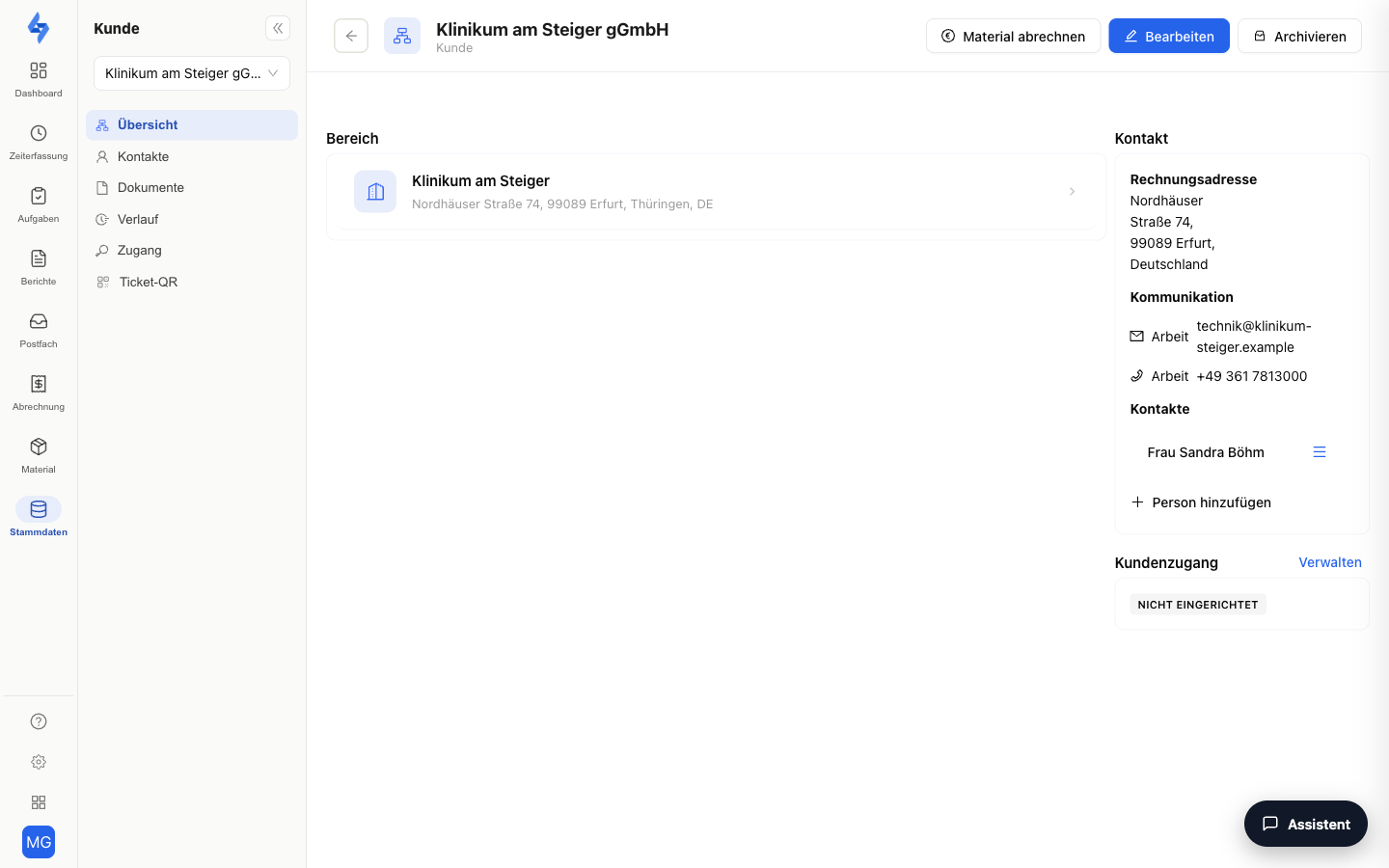
What is this view for?
The customer view is your workspace for a single client: maintain master data, contacts and documents — and above all set up the customer access. It makes communicating with your client simple: they check the status themselves and report problems the moment they surface, instead of asking.
Tabs
Overview
The overview shows the properties assigned to the customer and the general customer information. From here, you can also create a new property for this customer directly — the map wizard opens with the customer pre-filled.
Contacts
Only for business customers: the contacts table shows all contact persons and customer-to-customer links. You can create new links, assign roles, and set a main contact.
These contacts do not stay in the portal: your team retrieves the contact details for the active property in the LiteLog app under More → Customers — role, communication channels and locations of the customer and their contact persons. This requires the View customers permission.
Documents
A link card to the customer's commercial documents in LiteBill: invoices, offers, delivery notes, and order confirmations. Each link opens the corresponding list, already filtered to this customer. This tab is only visible if you have the View documents permission and the invoicing package is active.
Activity Log
The activity log shows all activities relating to the customer in chronological order — creation, changes, links, deals, and manually added notes. The log automatically loads more entries as you scroll.
Actions
At the top right — depending on your permissions — the actions Edit, Archive, and Delete are available.
Customer Access
Via the Customer access entry in the left panel (visible with the Edit customers permission) you set up a dedicated portal login for your client. You choose the username and password yourself and pass both on to them — LiteLog sends no invitation email for this.
You then decide under Visible areas what they may access. Seven areas are available: Rounds, Incidents, Tickets, Material, Work orders, Attendance proof and Reports. A newly created access starts with rounds only; you enable everything else individually. The customer always sees only the properties assigned to them.
When Tickets is enabled, they report their own requests, which arrive as tasks on your side. With the Material checkbox they see the material stock of their properties (without purchase prices) and request material for you to approve. With Work orders they see their work orders including the proof of service, read-only. With Attendance proof they check start, end, duration and gap of every cleaning visit against your targets; employees appear with their personnel number by default (a fixed code if none is set). Once the area is active, the Personnel number | With names switch appears below it — only that shows the customer real names.
To suspend the login, use the Deactivate access button at the top right of the Credentials card. The access itself is kept and can be re-enabled via Set up customer access. Saving an empty username is not a way to do this — the field is mandatory.
Details on all areas: Managing customer portal logins
Ticket QR
The Ticket QR entry (visible with the Edit properties permission) lists all of this customer's properties with the state of their public ticket QR notice: use the switch to enable or disable the notice per property, copy the public reporting link while the notice is active, and click the property name to jump to the property's incidents page. This lets you set up the notice for all of a client's properties in one place.
Good to Know
:::tip Note
- Only one main contact can be set per business customer. If you assign a new main contact, the previous one is reset automatically.
- Links between customers work in both directions — no matter from which side you create the link, it appears for both customers.
- The activity log automatically records all changes. Field changes are recorded in detail (previous and new value).
- When archiving a customer with customer access, the linked access is deactivated automatically. When restoring, it is reactivated. :::
Permissions
:::info Permission To use this page, you need the permission View customers. Contact your administrator if you don't have access. :::
| Action | Permission |
|---|---|
| Edit customer data | Edit customers |
| Archive customers | Archive customers |
| Delete customers | Delete customers |
| Show documents tab | View documents |
| Manage links | Edit customers |
| Manage customer access | Edit customers |
| Manage ticket QR | Edit properties |
Related Pages
- Customer List — back to the customer overview
- Property List — list of all properties
- Create Property (Map Wizard)