Activity — Activity Log
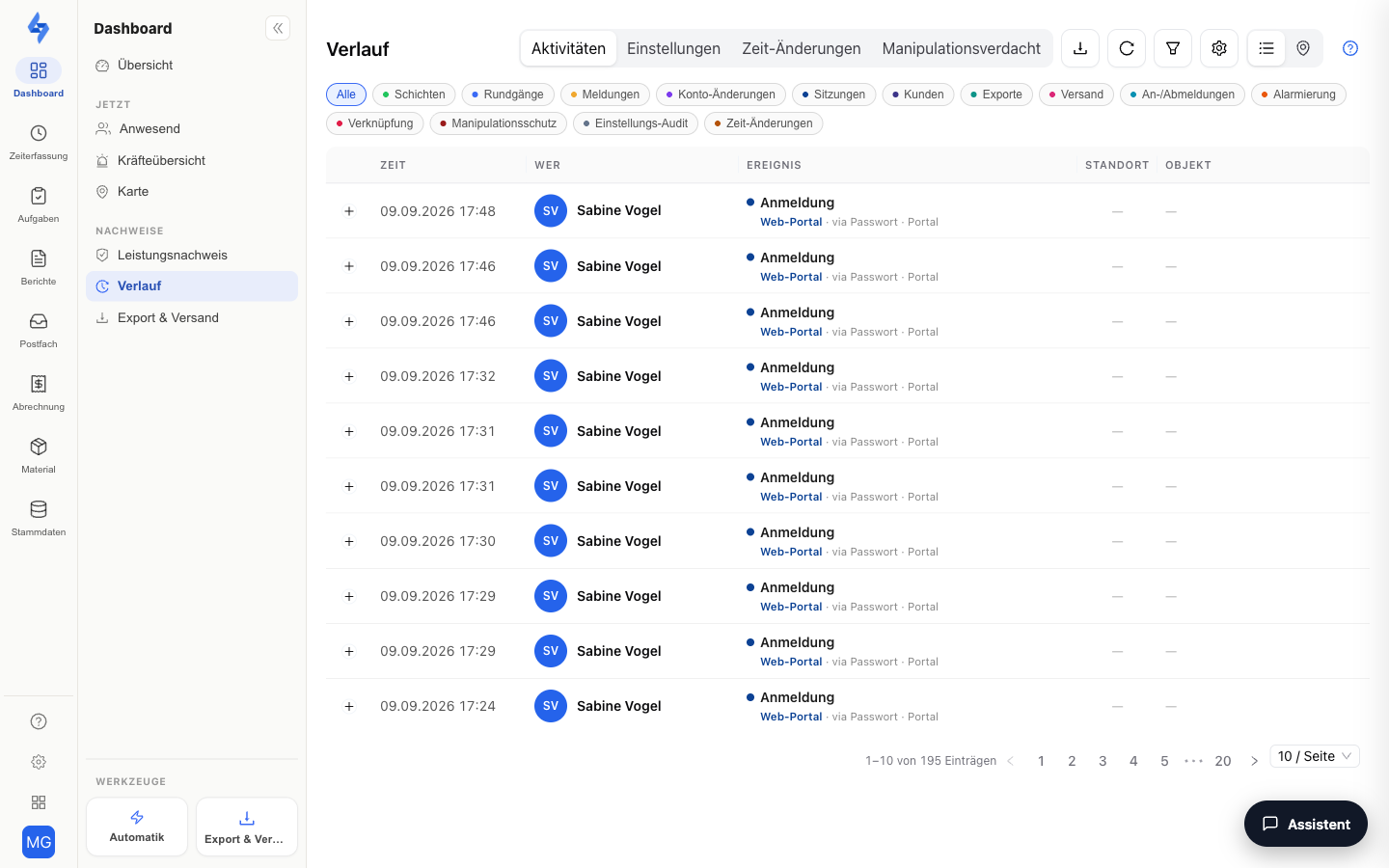
Activity (menu item Dashboard → Evidence → Activity) is the chronological log of all events in your account — across all areas: shifts, rounds, incidents, logins, account changes, exports, deliveries, rule executions, and more. Each row is an event with time, acting person, type, and (where available) property and location.
What Is This View For?
This view is built for traceability and troubleshooting: who did what, and when? — across the entire system. It answers questions like:
- Who logged in to or out of the portal, when (and from where)?
- When was checkpoint X scanned — and by whom?
- Who edited this customer/master data?
- Was the export email actually sent, or did it fail?
Unlike the analytical round views (coverage report, round logs in the "Tasks & Routes" workspace), Activity is the system-wide event log, not limited to rounds. The former Scan history menu item has been absorbed into this view: pick Routes under Sources in the left menu to see all checkpoint scans in chronological order (see below).
View and Sources in the Left Menu
On the Activity page the left menu shows no Dashboard navigation, only two blocks — the same way the menu carries the facets for Reports and Tasks:
| Block | What it does | Query parameter |
|---|---|---|
| View | Pick the section: Activity (event log), Settings (settings audit), Time edits and Quarantine (both require the time-tracking read permission), Suspected tampering (repetition report) or Signatures (signature manifest) | section |
| Sources | Toggle event types (multi-select; All removes the restriction). All sources are listed alphabetically; the magnifier searches the list. Activity section only | logsSources |
All other filters live in one filter row above the table in every section (see below). To get back to the Dashboard navigation, click Dashboard in the far-left bar; if the menu is collapsed, expand it again via the arrow there.
The Four Tables Speak One Language
All sections use the same columns: Time (single line), Who (person with avatar; System when there is no human initiator), Event (title plus old→new diff) and Reference (property, shift or affected setting). In the diff, durations show as h:mm, timestamps in your time zone and check-in methods as plain text; rows without a real change are hidden.
:::info Prerequisite
To open the page you need View round evaluation (VIEW_REPORTS) and View persons (VIEW_PERSONS, loads the events); to export, you additionally need Export round evaluation (EXPORT_REPORTS). Accounts with the Customer role have no access.
:::
Features Overview
Event Types (Sources)
Use the Sources block in the left menu to filter by event type (multi-select; All removes the restriction). The audit trails Settings audit, Time edits and Suspected tampering have their own sections (see View) and do not appear in the activity feed.
| Source | What is logged |
|---|---|
| Shifts | Shift started / ended |
| Routes | Round started / ended / paused / resumed / cancelled / time exceeded and checkpoint scans (tag, QR, photo) — including free rounds |
| Incidents | Created incidents |
| Account changes | Profile and role changes, activate / deactivate, archive / restore, invitations. Changes made through Microsoft carry an addition: "by directory sync" or "by sign-in with Microsoft" |
| Sessions | Login and logout (web portal and mobile app, also "via sign-in with Microsoft" and via the legacy app sign-in), sign-in failed (including too many attempts), logout with its source (manual, automatic after timeout, replaced by a new sign-in), property switch, password changed / reset, password reset requested / failed, session refresh denied / session refreshed, API key used / rejected (Public API), platform admin signed in (support access), linked sign-in added / removed, two-factor sign-in set up / reset, second factor confirmed / failed, session ended with its reason (revoked or blocked at Microsoft, password changed, password reset) |
| Customers | Customer created / edited / note / archived |
| Exports | Export started / running / ready / failed |
| Deliveries | Sent emails and push notifications |
| Check-ins/outs | Time tracking check-in / check-out / break / resume |
| Alerts | Attendance alerts and reminders |
| Rules | Rule executions of the automation: rule executed / failed / skipped / duplicate, not sent again / waiting / running / scheduled — with rule name, trigger and channel counts in the detail line. Clicking the row opens the individual deliveries (see Rule History) |
| Tamper protection | Denied, bypassed and flagged booking attempts of the protection gates: mock location, implausible travel, disallowed tracking method, booking outside the time window, invalid/reused QR tokens, unknown NFC chips, missing property access |
Columns
| Column | Description |
|---|---|
| Time | Time of the event (DD.MM.YYYY HH:mm; tooltip with seconds) |
| Who | Acting person (avatar + name). For account changes, the acting person's username appears underneath, as it was at the time of the change (frozen in the audit row, kept even after a later rename). Account rows from before 9 Oct 2026 show the acting person's current name and username, because there is no backfill for them; from that date on the name is frozen in the row. For deliveries, alerts and rules it says System (no human initiator) |
| Event | Colored dot (color of the event type) + title + subtitle (type + context). For checkpoint scans, the checkpoint name is the title. For account changes, the changed fields follow (old → new) and — if a change reason was given when saving — the reason as a tag with the reason code (e.g. Correction, Customer request) plus free text; see Change control |
| Location | Map icon → map excerpt if GPS coordinates are available; otherwise "–" |
| Property | Property name; for customer events, the customer name |
:::tip Showing/Hiding Columns Use the gear icon to hide or show Who, Location, and Property (saved in the browser). Location is hidden by default because only rows with GPS coordinates carry a value. Time and Event are always visible. :::
Expandable rows: Only session rows can be expanded (plus icon) and additionally show platform, login method, device, device UUID, IP address, user agent, and location.
Clickable rows: Shift rows open the shift; rule rows open a side panel with the individual deliveries of the execution (channel, recipient, status, time, error).
Filters
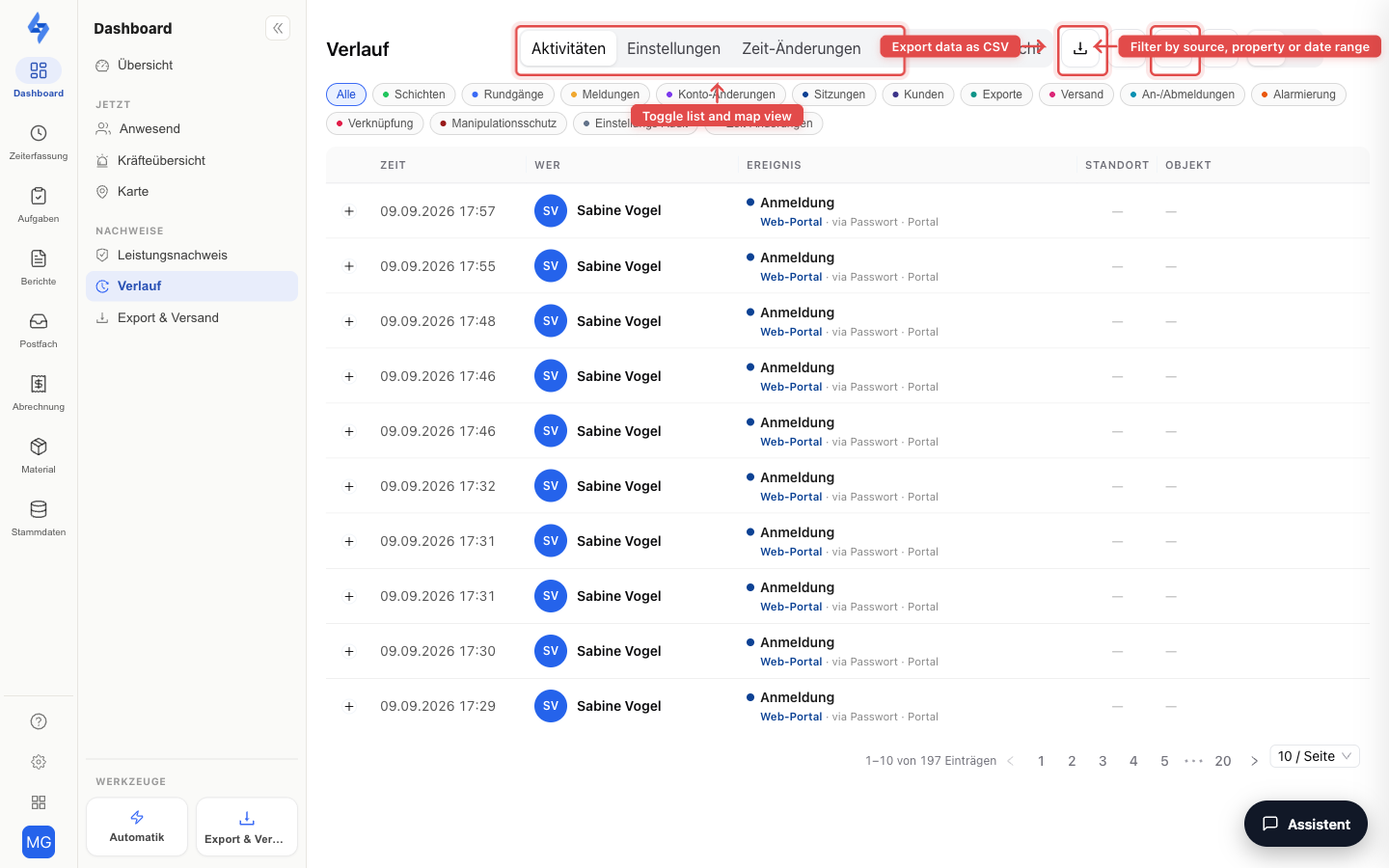
Every section has one filter row above the table. The filter funnel top right (next to List/Map) shows and hides it; it opens on its own when a link carries a filter, and the funnel stays blue while a filter is set. Reset filters appears on the left of the row as soon as a filter is active:
| Section | Filters | Query parameter |
|---|---|---|
| Activity | Date range (start and end), Person, Property, Event (specific types, grouped by source and limited to the sources selected on the left), Shift (searchable) | logsFrom, logsTo, logsAccount, logsProperty, logsEvents, logsAttendance |
| Settings | Area (multi-select) | auditTypes |
| Time edits | Event (edited, deleted, confirmed …) | editEvents |
| Quarantine | Reason | quarantineReasons |
| Suspected tampering | Period 7 / 30 / 90 days | verificationDays |
| Signatures | Object type, Meaning, Status (multi-select) | sigTypes, sigMeanings, sigStatus |
- Default range for Activity: the last 7 days (shown under the table while no range is set); maximum range: 31 days.
- The sources (left menu) and the Event filter (specific type) work together (AND logic). Deselecting a source automatically drops its events from the event filter.
- Reset filters clears the filter row; the sources in the left menu and the section stay.
- Every filter lives in the URL — a copied link opens the same view with the same filters, also after a reload.
The search inside the selection lists (and the magnifier on the Sources block) is the search within that list — there is no separate free-text search across all events.
Refresh & Export
Top right, left to right: Help, then in the Activity section List / Map, then the filter funnel (in every section), then Activity only Columns, Refresh and Export; in the Settings section this spot holds the settings audit trail export:
- List / Map — switcher: display the events as a table or on a map (by location).
- Refresh — reloads the events (and the map).
- Export (download) — dropdown menu with "Download CSV", "Download PDF", and "Schedule export" (recurring email delivery). The export takes over all currently set filters (sources, date range, person, property, specific event types), runs in the background, and appears under Export & Delivery. One row per event; account changes, worktime edits and settings audit produce one row per changed field with old and new value. The columns are explained in the Evidence package. Username is filled for every source with an acting person — frozen at the time of the event for account changes, sign-ins and settings audit, otherwise the account's current username. Rows without a change (sign-in, delivery, scan) leave Field/Old value/New value empty. Requires Export round evaluation.
- Export settings audit trail (Settings section only) — "Download CSV", "Download XLSX" and "Schedule export". One row per changed field with time, user, role, area, event, reference, field, old and new value and reason; the columns and the catalogues for area and event are explained in the Evidence package. Nested settings appear as single rows (
gxp_change_control.config.form_template.approval). Changes to form templates appear per form field (e.g.Feld „Floor“ · Pflicht: false → true,Feld hinzugefügt,Feld entfernt,Reihenfolge— keys are German, the Field column translates them), as well as for assignment, description, review and signature requirement; a schema change additionally carries the rowVersion: v4 → v5. Saving without an effective change keeps a row without a field. The area filter is applied. Username has been frozen in the row since 8 Oct 2026; older rows show the account's username as of the time of reading (no backfill, the trail is immutable). Reason shows the text Initial creation for creation rows (event created) without a given reason — creating needs no reason (see Change control); the same applies to Account created in the activity export and to the follow-up rows of the same creation (e.g. control points and checklist of a newly created task, event changed in the same operation), which the server marks as part of the initial creation. Requires Export round evaluation and View settings. - Export time edits (Time edits section only) — the same activity export preset to the Worktime edit source; the event filter is applied, one row per changed field. Requires Export round evaluation.
- Export signature log (Signatures section only) — "Download CSV" and "Download XLSX". One row per signature with signer, times (signed and received), meaning, method, status, full checksum and manifest ID; the columns are explained in the Evidence package. The section's three filters are applied. Name, username, personnel number and role are frozen at signing time — renaming the role later does not change the row; signatures recorded before this extension carry no role. Signatures made by LiteLog support while impersonating carry the role Platform admin without a personnel number. Requires Export round evaluation and View reports.
- Export suspected tampering (Suspected tampering section only) — the same activity export preset to the Tamper protection source and the selected period (7/30/90 days) as "Download CSV" or "Download PDF". The export covers at most the last 31 days — even in the 90-day view (a notice appears on click); the file name carries the window that was actually exported. "Schedule export" is not offered here, only in the Activity section (a schedule knows no source and would deliver the whole feed). The Quarantine section has no export.
- PDF note: The Time (local) column is pre-formatted in the property's or tenant's time zone; the date format of a report template does not apply to this column. Use Time (UTC) for custom formats.
Scan History (Routes)
The scan history of the routes is this Activity view with the "Routes" source preselected: you see all round events including checkpoint scans (tag, QR, photo) in chronological order. Older links to the former scan history pages redirect here automatically. All other filters and functions are identical.
Rule History
The history of the automation rules is this Activity view with the "Rules" source preselected. The menu item Settings → Notifications → History opens it that way; the former address /automation/history redirects here. Each row is one rule execution: the outcome as the event (e.g. Rule executed, Rule failed), System as the actor, the property of the triggering event (if known) and the detail line rule name · trigger · channel counts (e.g. "Send email ×3 · Send push ×5").
Clicking the row opens a side panel with the individual deliveries: channel, recipient, status, time and error; push and in-app as the number of accounts and devices reached. For permanently failed executions it offers Resend (permission Edit workflows). Rule executions are deleted after 30 days. Details, event meanings and permissions: Rule History.
Quarantine
The Quarantine section (requires the time-tracking read permission) lists bookings from the app that the server accepted but did not apply, for example because the shift was already closed. Each row shows the person, the property with booking time, the reason and the device; the expanded row shows the full raw record.
Signatures (Signature Manifest)
Under View you find the Signatures section: every digital signature of the tenant (21 CFR Part 11) in one list — time of signing, signer with username, meaning (e.g. "Performed and confirmed", "Change approved"), method (PIN, password, NFC chip, QR code), verification state with failure reason, reference (task, form template, incident, tour or approval request), property and the first characters of the checksum. Filter by Object type, Meaning and Status. Accounts restricted to properties only see signatures of their properties; approvers additionally see signatures on approval requests. The Signature log export delivers the same rows with the full checksum as CSV/XLSX.
Suspected Tampering (Repetition Report)
Under View in the left menu, next to "Activity", "Settings", "Time edits" and "Quarantine", you find the section Suspected tampering — a per-person repetition report over all denied, bypassed and flagged booking attempts. For each person you see the number of hits per check area (plausibility, tracking method, time window, QR token, NFC) in the selected period — each with the previous period's value for comparison — plus the total and the time of the most recent hit. Choose the period in the filter row with 7 / 30 / 90 days; only people with at least one hit are listed.
The report is a list of suspicions, not proof: single hits can have harmless causes (GPS dropouts, an expired QR code). What matters are repetitions — open the underlying individual events via the link on the property page or the deep link ?logsSources=verification in the "Activity" section. The same events of a single property are shown by the "Recent events" card on the property's tamper protection page.