Automation (Property)
On this tab, you view and manage the automation rules that apply only to this property. Rules are if-then flows: a trigger (e.g. "round missed") leads through optional conditions to actions such as notifications, tasks, or escalations. LiteLog does not prescribe fixed processes: you combine the building blocks to match the procedures at this property.
Navigation: Master Data → Properties → select a property → panel entry "Automation" (group "Administration")
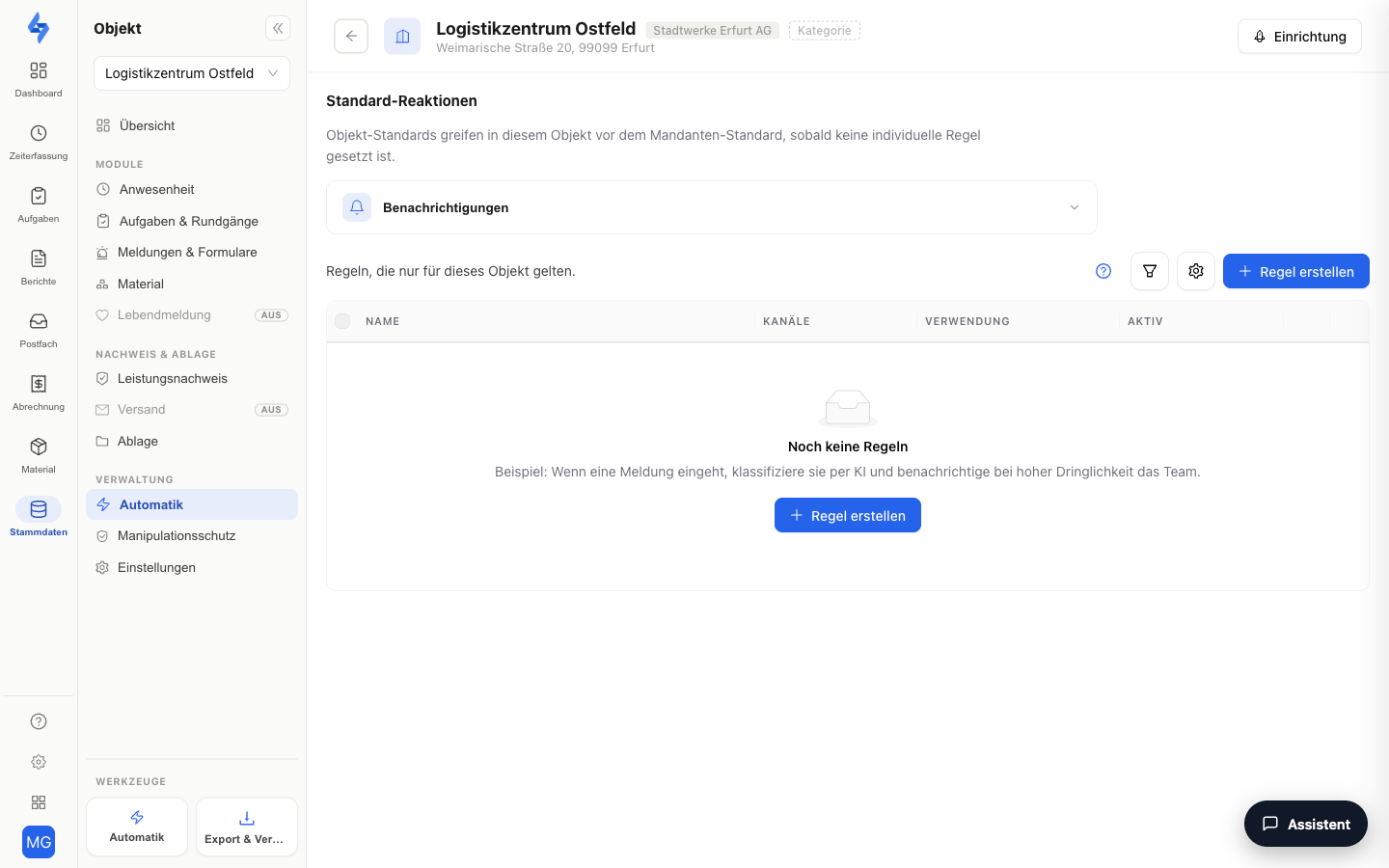
Features at a Glance
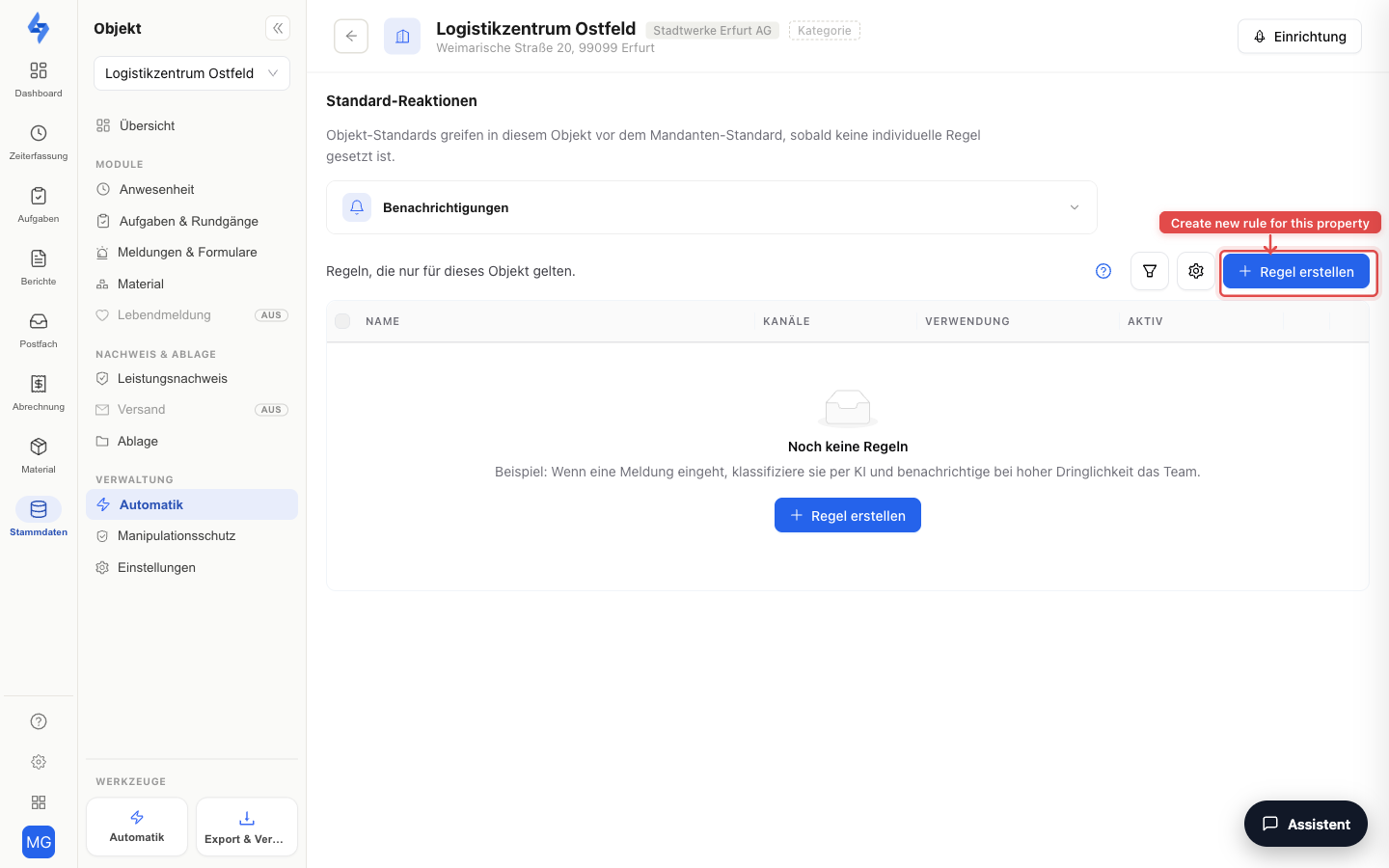
Rule Table
The table shows all rules whose scope is limited to this property — with trigger, recipients (who gets notified), and channels (how: email, SMS, call, push, in-app). You can enable, disable, and edit rules here.
New Rule
The "New rule" button opens the graphical workflow editor. The new rule is automatically scoped to this property — you only choose the trigger, conditions, and actions.
Typical triggers: round missed/completed, checkpoint missed, incident created, form submitted, scheduled shift starts/ends, check-in missing, check-out missing. The full trigger list is on the Rules page.
Good to Know
:::tip Note
- Account-wide rules (without a property scope) are managed in the main Automation area — this tab deliberately shows only the property-scoped rules.
- The automation rules replace the former notification checkboxes in the property settings.
- You can test rule drafts with sample data before saving (test run in the editor). :::
Permissions
:::info Permission To open this tab, you need the permission Edit properties. Contact your administrator if you don't have access. :::
| Action | Permission |
|---|---|
| View rules | View workflows |
| Create and edit rules | Create workflows / Update workflows |