Documents (Property)
On this tab ("Documents"), you store documents for the property — e.g. work instructions, property information, or special rules. The files are available to employees in the mobile app and can optionally be used by the AI assistant.
Navigation: Master Data → Properties → select a property → panel entry "Documents" (group "Administration")
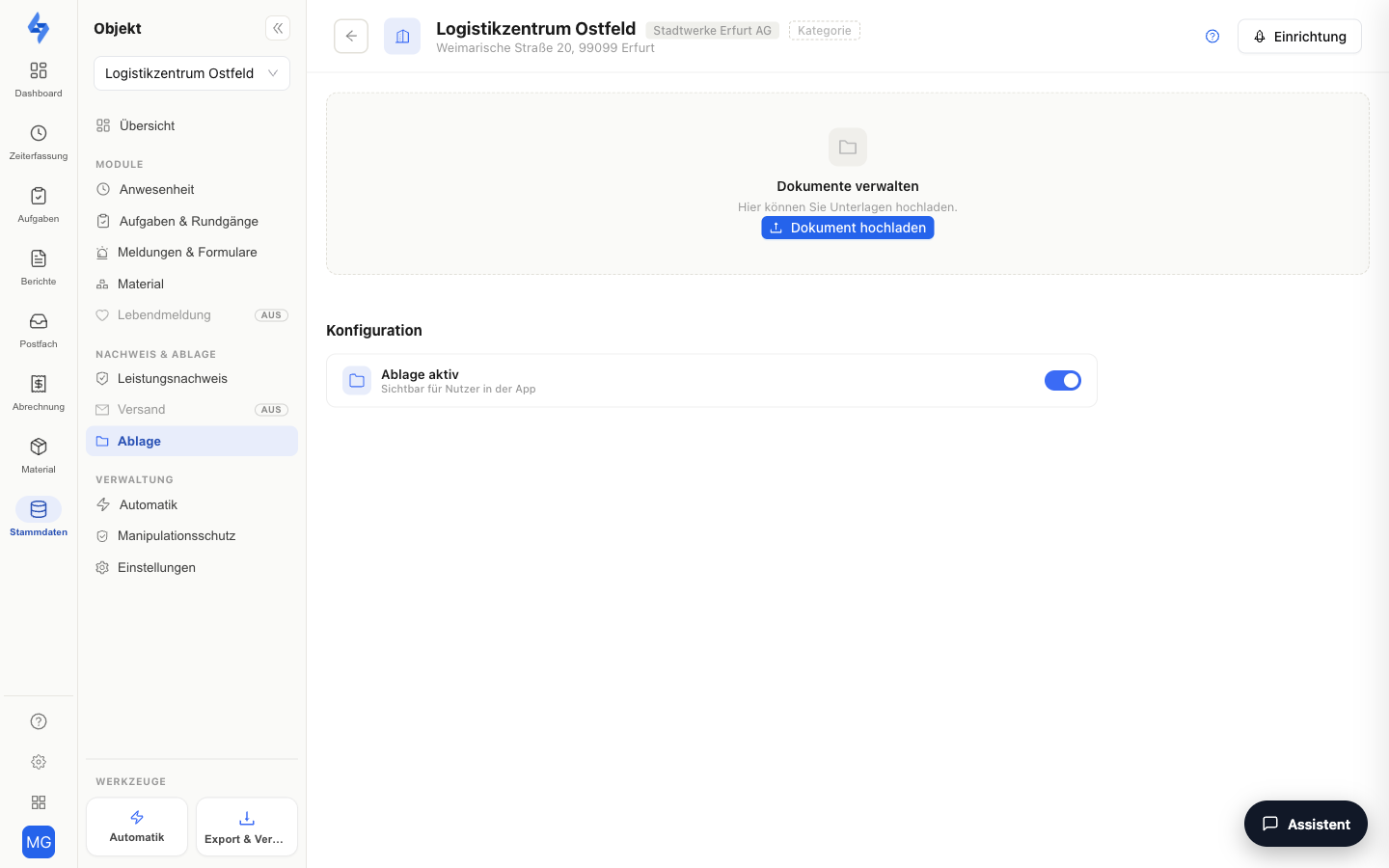
What Is This View For?
This area is the document storage of a property. Here you decide which documents are available, where they are visible (only this property or all properties), and whether the AI assistant (Hannah) may use them to answer questions. The latter is the bridge to knowledge search: only released documents flow into the AI knowledge base.
The list has two sections:
- Visible in all properties — global documents that appear in every property (maintained centrally).
- Visible only in <property name> — documents that apply exclusively to this property.
Upload a Document
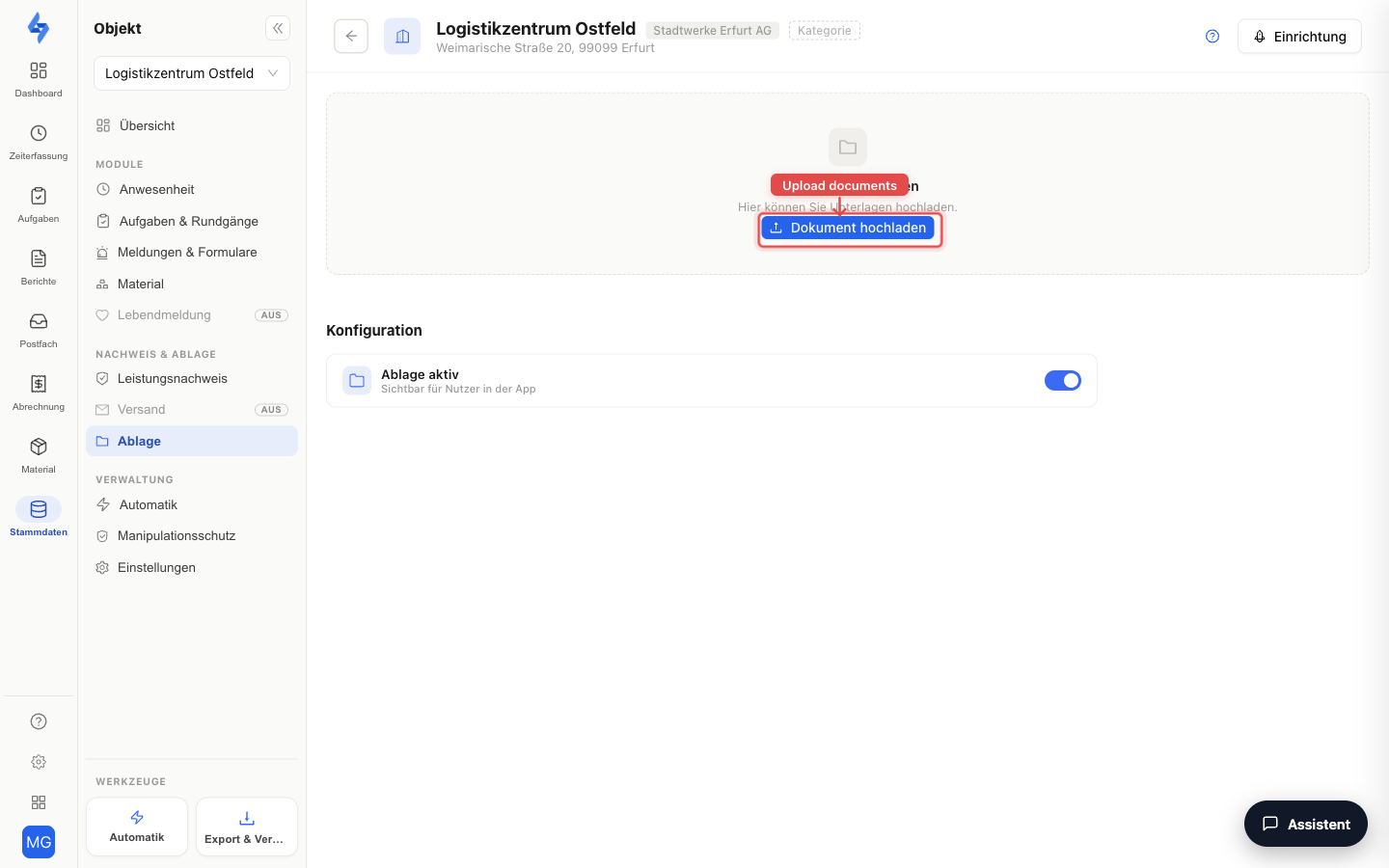
Upload document opens a dialog with three steps:
- Assignment — All properties ("Document is shown in all properties") or only this property ("…only in the selected property").
- Upload — via drag & drop or file selection. Allowed: only
.png,.jpg/.jpeg, and.pdf, smaller than 50 MB. Plus a name for the document. - AI assistant — toggle "Let the AI assistant (Hannah) process it". If it is on, the AI assistant can use this document to answer employees' questions. Disabled by default (data protection: releasing a document is a deliberate decision).
Document Actions
When you hover over a document card, four actions appear:
| Action | Effect |
|---|---|
| Download | Downloads the file. |
| Edit | Opens "Edit document" — rename and switch the AI assistant release on/off afterwards. |
| Change assignment | Moves the document between the sections: "Assign to this property only" (global → property-specific) or "Assign to all properties" (property-specific → global). |
| Delete | Removes the document (with a confirmation prompt). |
Configuration
At the bottom, the Documents active toggle ("Visible to users in the app") controls whether the document storage is shown for this property at all. If it is off, the documents section does not appear in the app.
AI Assistant & Data Protection
If you mark a document for AI processing, it is embedded into the assistant's knowledge base and Hannah can use it for matching questions (via the property document search). Important:
- Opt-in, off by default — without an explicit release, no document leaves the property portal towards the AI (privacy by default, Art. 25 GDPR).
- For images (
.png/.jpg), no text is extracted — PDFs are best suited for knowledge search. - The release can be revoked at any time via Edit.
Permissions
:::info Permission To see the documents, you need View documents or Edit properties. Contact your administrator if you don't have access. :::
| Action | Permission |
|---|---|
| Upload document | Create documents |
| Rename / AI release / change assignment | Edit documents |
| Delete document | Delete property documents |
| Toggle "Documents active" | Edit properties |