Set Up Rounds (Property)
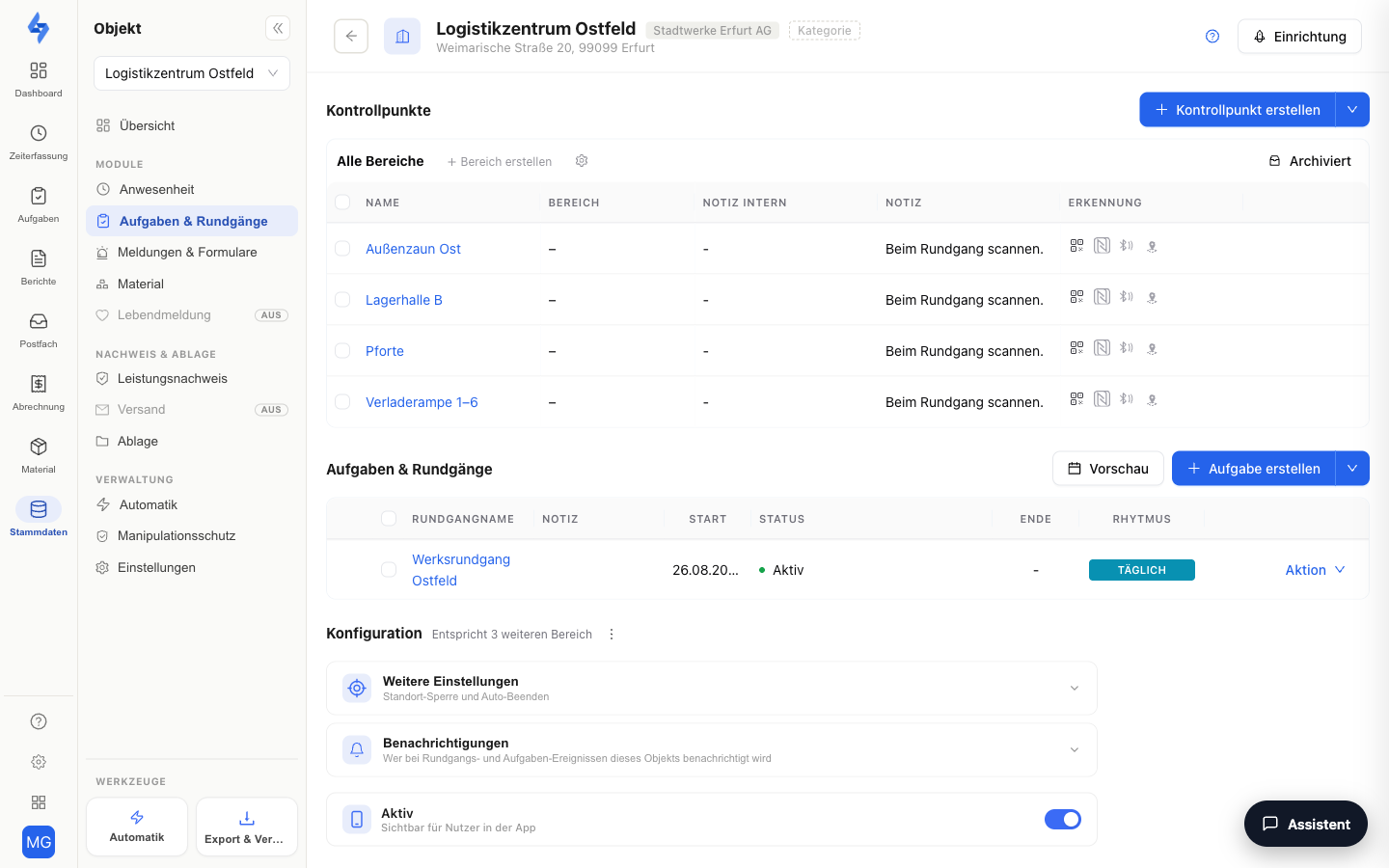
Here you manage the checkpoints and round templates for the selected property. This management lives as the "Setup" view in the property's "Tasks & Rounds" panel entry (Tasks tab) — one menu entry, one page with all sections below each other. The former standalone "Rounds" tab was folded in here; old links are redirected automatically.
Navigation: Master Data → Properties → select a property → "Tasks" → "Setup" view
What Is This View For?
This view is the management hub for a single property's rounds. Here you define where scanning takes place (checkpoints), when scanning should happen (round templates), and under which rules the feature runs (configuration). What you set up here directly controls what your employees see and scan in the mobile app — and what later analyses measure as planned vs. actual.
The view has three building blocks that build on each other:
- Checkpoints — the individual stations (e.g. "Underground garage entrance") that are captured via NFC tag, QR code, Bluetooth beacon, or — outdoors — automatically via GPS. Mandatory foundation; without checkpoints there is nothing to scan.
- Templates — optional round schedules with fixed time windows and a sequence of checkpoints. Only a template turns free checks into a planned round (planned/actual).
- Configuration — property-wide rules (location check, automatic ending) and the active switch that shows or hides the whole feature in the app.
What Is a Round?
A round is a controlled route that an employee walks while scanning checkpoints or documenting events. This enables complete documentation of location and performed activities.
Round Types
LiteLog distinguishes between two categories:
Free rounds (actual) — The employee starts without fixed time requirements or mandatory checkpoints. All scanned or documented actions are recorded as the actual state. Ideal for special checks after alarms, additional inspection rounds, or ad-hoc checks.
Planned rounds (planned / actual) — Times and checkpoints are predefined. The system documents both the planned and the actually performed activities and automatically flags deviations such as missing checkpoints, scans that are too early or too late, and deviations in the sequence.
Both types can be combined within one property — e.g. a planned night round every two hours plus free rounds for special events.
Incidents During Rounds
During a round, employees can record incidents, damage, and notes directly. These are assigned to the property, round, and time.
Offline Functionality
LiteLog also works without an internet connection. Scans and incidents are stored locally on the smartphone and synchronize automatically as soon as internet is available.
Analysis
The performed rounds appear in the Tasks & Rounds workspace; the coverage view shows planned vs. actual per day. Logs can be exported as PDF.
Required Hardware
- Smartphone with the LiteLog app
- NFC tags, QR codes, or Bluetooth beacons at checkpoints
No additional servers or special devices are required.
Features
Checkpoints (Table)
The checkpoints table lists all checkpoints of the property with the following columns:
| Column | Meaning |
|---|---|
| Name | Name of the checkpoint (e.g. "Underground garage entrance"). |
| Internal note | Internal note — only visible in the portal, not to employees in the app. |
| Note | Instruction the employee sees in the app when scanning. |
| Detection | Icons for the point's configured capture methods: QR (always), NFC (chip linked and active), beacon, and/or GPS. A linked but inactive chip shows the hint “Chip linked, not active”. |
+ Create checkpoint opens the editor (see below). Use the search to filter by name. If you select multiple rows, bulk actions appear: download the QR codes of the selected checkpoints as a PDF, archive them, or (for archived checkpoints) restore them.
Create / Edit a Checkpoint
The editor opens as a full-page view. On the left, you see the All checkpoints list with search and another + Create checkpoint, so you can switch between checkpoints without any intermediate step. Keyboard shortcuts: ⌘ S save, Enter in the name field create or save, ⌥ ↑/↓ switch checkpoint, Esc close. On the right under the properties, the Detection row is shown already when creating: QR code active, NFC, beacon and GPS as chips — GPS opens the location section, chip and beacon are paired in the app once the point is saved.
The only required field is the checkpoint name (max. 100 characters). Buttons let you add optional building blocks:
| Building block | Description |
|---|---|
| Task | Via “Add task” you link an existing task of your account, or you create a new one via “Create task”; the employee sees it when scanning. When editing, the editor lists all open bound tasks with an edit button. Details: Binding tasks to checkpoints. |
| Location | Pin on the map for orientation. Without any further option, display only — no location check (you enable a GPS requirement property-wide via the location check, see Configuration). With a location set, you can additionally enable the "Capturable via GPS" switch with a radius — the point is then booked automatically during an active round as soon as the employee enters the radius (details: Manage Checkpoints). |
| Photo | Image of the checkpoint (JPG or PNG, max. 1 MB after compression). |
| Internal note | Note that is not visible in the round/app — portal only; the field shows "+ add" until the first entry. |
When editing an existing checkpoint, the editor additionally shows status cards:
- NFC — linked / not linked. NFC linking happens exclusively via the mobile app (the employee holds the phone against the tag); a chip cannot be assigned in the portal. Alternatively, a checkpoint can be linked to a Bluetooth beacon via a 4-step wizard in the app — it is then captured by proximity up to a configurable distance threshold; you configure the beacon namespace in the portal under Settings → Beacons.
- QR code — download the QR code (alternative without NFC; also available directly in the app).
- Scans 30d — number of scans in the last 30 days.
- Last scan — time of the last scan or "No scans yet".
- Status — Active / Inactive. The status is maintained automatically: if an employee reports the point as not present via photo fallback, it switches to Inactive; the next successful scan (NFC, QR, beacon or GPS) sets it back to Active. The status only affects the NFC indicator in the Detection column, not the coverage and not the linked tasks.
Archive takes a checkpoint out of service (requires the delete permission). The Buy NFC tags link leads to the shop.
Templates (Round Schedules and Recurring Tasks)
The templates table is a mixed list of the property's round templates and recurring tasks (tasks with an active recurrence schedule from the Tasks & Rounds workspace) — with name, internal note, start/end date, status (waiting/active/ended), rhythm, and an expandable version history. Create first template or clicking a round row opens the round editor; clicking a task row opens the task detail view. Tasks with a disabled schedule do not appear here. In the round editor you define time windows, checkpoint sequence, and repetition rules — only this turns free checks into a planned round (planned/actual).
The row action menu additionally offers:
- Copy — creates a copy of the template (details: Create Route).
- End — stops the series immediately or from a chosen date ("The last round takes place on …"). An ended template can be resumed via "Remove end"; the log history is preserved. Requires the Stop preset round permission.
- Delete — only possible as long as the template has not started yet; end started templates instead. Via multi-select you delete several unstarted templates at once.
The Preview button opens a full-screen calendar (month/week/agenda) with all scheduled round dates of the property, combined with attendances and holidays.
Configuration
The configuration card bundles the property-wide basic settings:
| Setting | Effect |
|---|---|
| Location check | Requires the phone to be inside the property area via GPS for round actions — checked at start, at finish, and on every single scan. This is the actual GPS requirement — not the map pin on the individual checkpoint. The location proof is set per feature and saved with this card; the overall view is on the Tamper Protection tab. |
| "Checkpoint not present" via photo | Allows employees to record an unreachable or missing checkpoint with photo evidence. If the switch is off, the option disappears in the app and photo bookings are not counted. |
| End automatically | Ends free rounds automatically once the set time has passed without further activity. Default 60 minutes, adjustable from 30 to 1440 minutes (24 hrs). The time of the last action is recorded as the end. |
| Active | Switches the round feature for this property on/off. If it is disabled, no rounds appear in the app for this property and nothing can be scanned. |
Planned rounds, by contrast, end automatically as soon as all required runs are fulfilled — see Perform Route (App) for how both behave in the app.
Holiday Notice
If no upcoming holidays are configured, a notice appears. Holidays affect round scheduling — depending on the configuration, rounds are skipped on holidays or run only on holidays.
Filter & Search
| Filter | Description |
|---|---|
| Search | Search for checkpoints by name |
Good to Know
:::tip Note
- Rounds support versioning: when you edit a running round, you can make the change effective immediately or from a future date.
- Checkpoints are only ever archived, never deleted. If a point is part of a round template whose series has not started yet, it cannot be archived and only its notes can be edited. Linked tasks remain when archiving — remove the link in the task beforehand.
- An NFC chip can only be assigned to one checkpoint or employee at a time.
- Rounds are automatically scheduled in advance for the next 5 days.
- The minimum duration per round is 1 minute, the maximum is 24 hours. :::
Permissions
:::info Permission To see the checkpoints, you need View control points; for the templates, View preset round settings. Contact your administrator if you don't have access. :::
| Action | Permission |
|---|---|
| Create checkpoint | Create control points |
| Create template/round | Create preset round settings |
| Edit template/round | Edit preset round settings |
| End a template / remove end | Stop preset round |