Property List
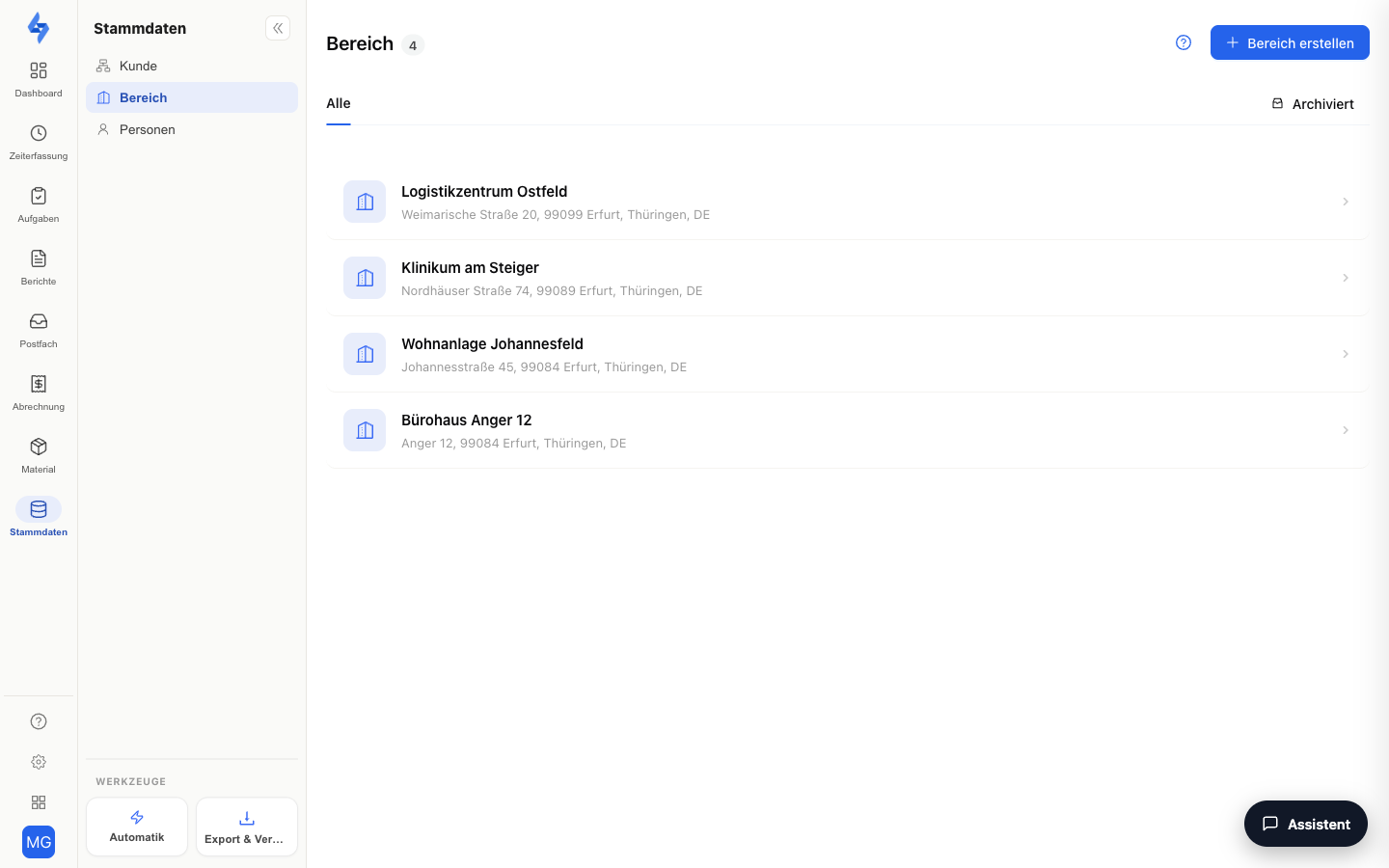
The property list shows all your managed properties (sites, premises) as a clear, paginated list. You switch between active and archived properties, search by name or address, and create new properties via the map wizard.
Navigation: Master Data → Properties
Features at a Glance
Property Rows
Each property is shown as a row with its key information — name, assigned customer, and address. If two properties share the same name and the same address, the property ID ("#ID") is appended to the name so you can tell the rows apart. The list is paginated; you page through it at the bottom. Clicking a property opens the property details.
Use the favorite star in the row to mark important properties — favorited properties always sit at the top of the list. The customer chip and the favorite star are only visible to administrators.
Active/Archived Tabs
Use the tabs to switch between active properties and the archive. Archived properties are kept with all their data but hidden in most views.
Search
Use the search field at the top right to filter the list by property name or address. The search term is kept in the address bar — even after reloading the page.
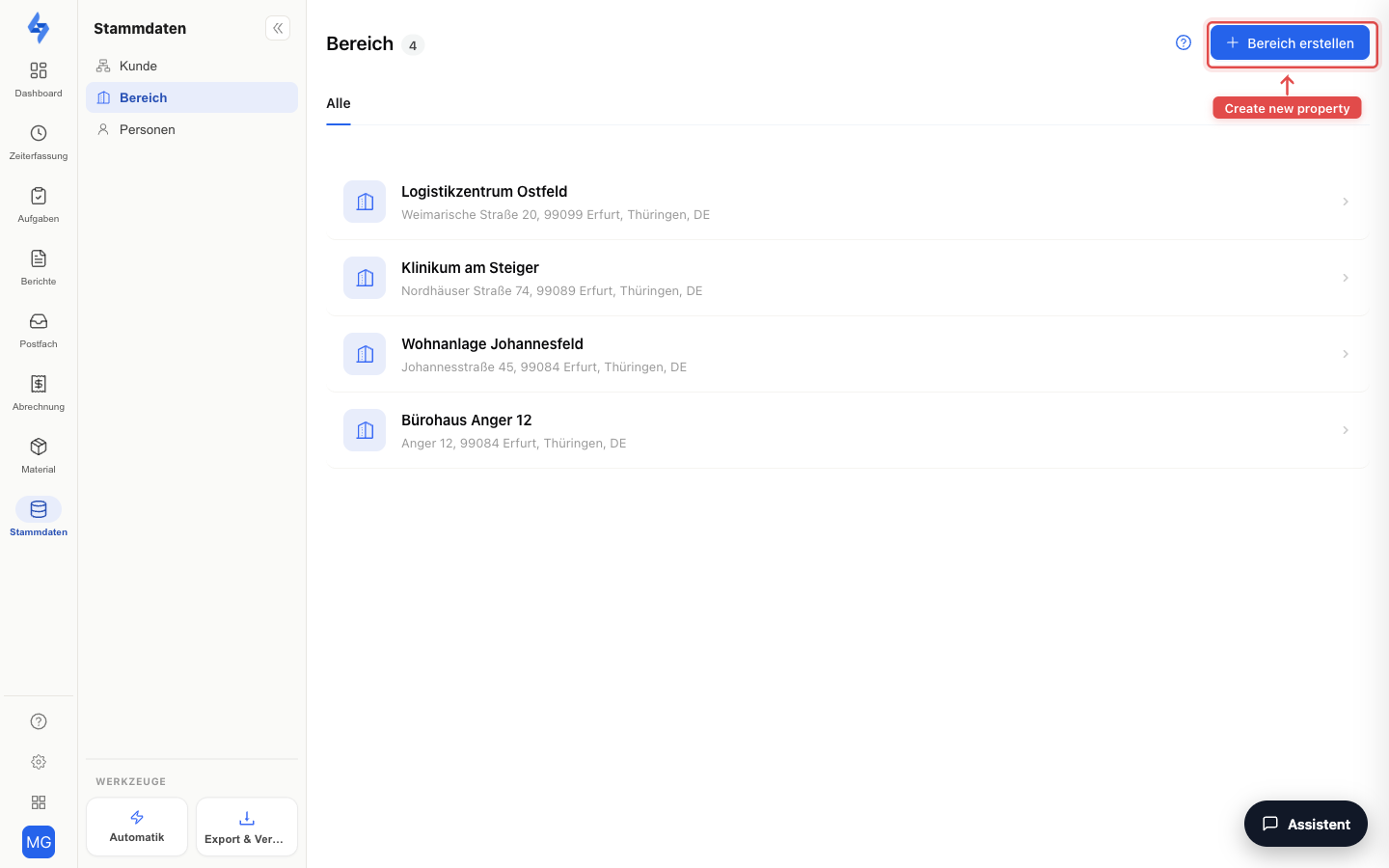
Create Property
The "Create" button opens the map wizard. There you create the new property in four steps: search location → details (name, customer) → draw the property area → mark important points. After "Save", the guided setup of the new property follows directly on the same page.
If your list is still empty, you see a starter card instead that leads you straight to the map wizard.
Good to Know
:::tip Note
- Address and property area are created and edited in the map wizard; name and customer can also be changed directly in the header of the property page.
- When creating a German property with a federal state, the holidays for the next 3 years are added automatically.
- Favorited properties always appear at the very top of the list (star in the row, administrators only).
- A map view of all properties is available on the live map. :::
Permissions
:::info Permission To use this page, you need the permission View properties. Contact your administrator if you don't have access. :::
| Action | Permission |
|---|---|
| Create a new property | Create properties |
Related Pages
- Property Details — detail view of a single property
- Create Property (Map Wizard) — create a new property
- All Properties on the Map — live map view