Create Report
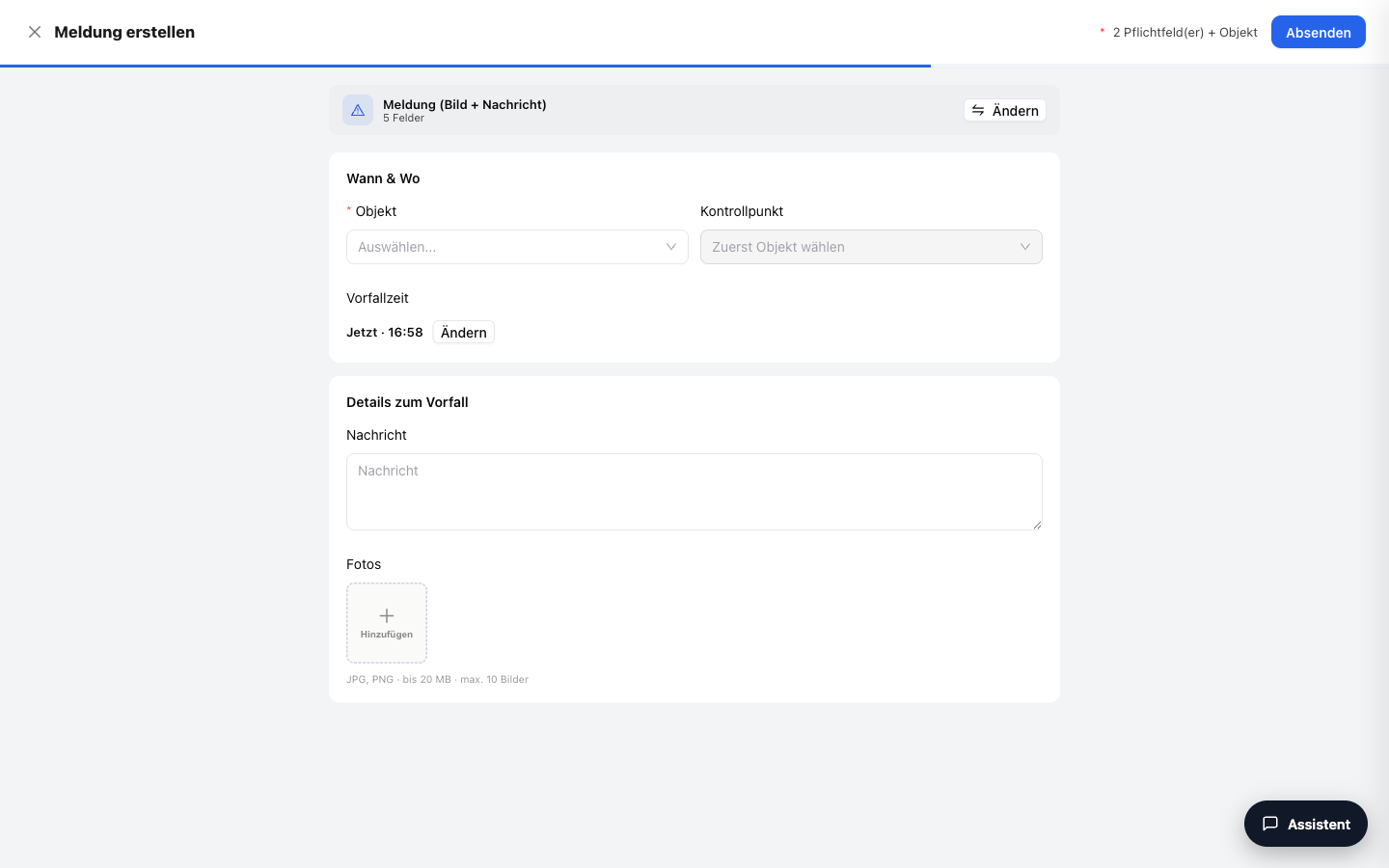
The "Create report" button in the Reports area opens the create page as its own full page. You capture a new report in two steps: first choose the template, then fill it in.
Features Overview
Choosing a Template
In the first step, you choose what you want to capture:
| Template | Description |
|---|---|
| Incident | An incident or event (e.g. damage, malfunction). The fields as shipped: Date (required), Time (required), Checkpoint, Message and Photos — plus the object, which is required for an incident report |
| Form template | One of your own custom forms (e.g. checklist, maintenance or handover protocol) |
You manage the available form templates in the settings under "Form templates" (group "Templates & Catalogs"). The "Incident" template lives there too: that is where you remove fields or make them required — see Incident reports.
Esc takes you back: with a template already selected, Esc goes one step back to the template picker (the same action as the "Change" button); with the picker still open, Esc there closes the create area.
:::info Category and severity are not asked for here Category and severity are not input fields of the incident form. They are assigned afterwards: either by hand in the incident detail view, or automatically by AI classification, which you have to switch on for that. :::
Filling In
The fields are determined by the chosen template. Depending on the template, the following are available:
- Photo upload — attach images directly
- Signature field — sign with mouse or finger directly in the form
- Defect carryover — carry open defects from a previous protocol (e.g. the last cleaning protocol) into the current one
Required fields are marked; the report can only be submitted once all required fields are filled in.
Short fields (OK/Defect, choice, number, date) sit two to a row. A field with a long label or with help text takes the full width — so even detailed inspection items, for example from a service specification, stay readable line by line.
Saving as a Draft
You do not have to finish a form in one go: save it as a draft and continue later — even on a different device, including photos and signatures already uploaded. While you fill it in, LiteLog also auto-saves in the background. Drafts appear in the reports list with the status "Draft" and can be resumed from there; a draft you no longer need can be deleted right in the editor.
Incident reports have no drafts — an incident is captured and submitted in one go; leaving the page discards its input (LiteLog warns you first).
Submitting
Submitting saves the report permanently and it appears in the reports list. Submitted reports are evidence records and can no longer be changed afterwards.
Good to Know
:::tip Note
- Reports can also be captured on the go via the mobile app — even without an internet connection; the data is synchronized automatically later.
- Submitting can trigger automation rules (e.g. "Incident created" or "Defect detected") — so the right contact person is notified immediately. The rule has to exist and be switched on for that; the pre-installed rule "Incident created → e-mail" ships deactivated.
- Submitted form reports cannot be deleted, but they can be cancelled with a mandatory reason — they remain visible in the list with a cancellation note. :::
Permissions
:::info Permission To create reports, you need the Create incidents or Fill forms permission. Contact your administrator if you do not have access. :::
| Action | Permission |
|---|---|
| Capture an incident | Create incidents |
| Fill out and submit a form | Fill forms |
| Delete a draft | Delete reports |