Schedule
The Schedule is the planning view of the Tasks area (next to Coverage). Per object it shows what is planned when, whether it happened — and where something is missing. It stacks four functions: tasks, patrols, tours and shifts/attendance, each with its plan (the rule) and its actual state (done, started, missed). The tasks list is its third view.
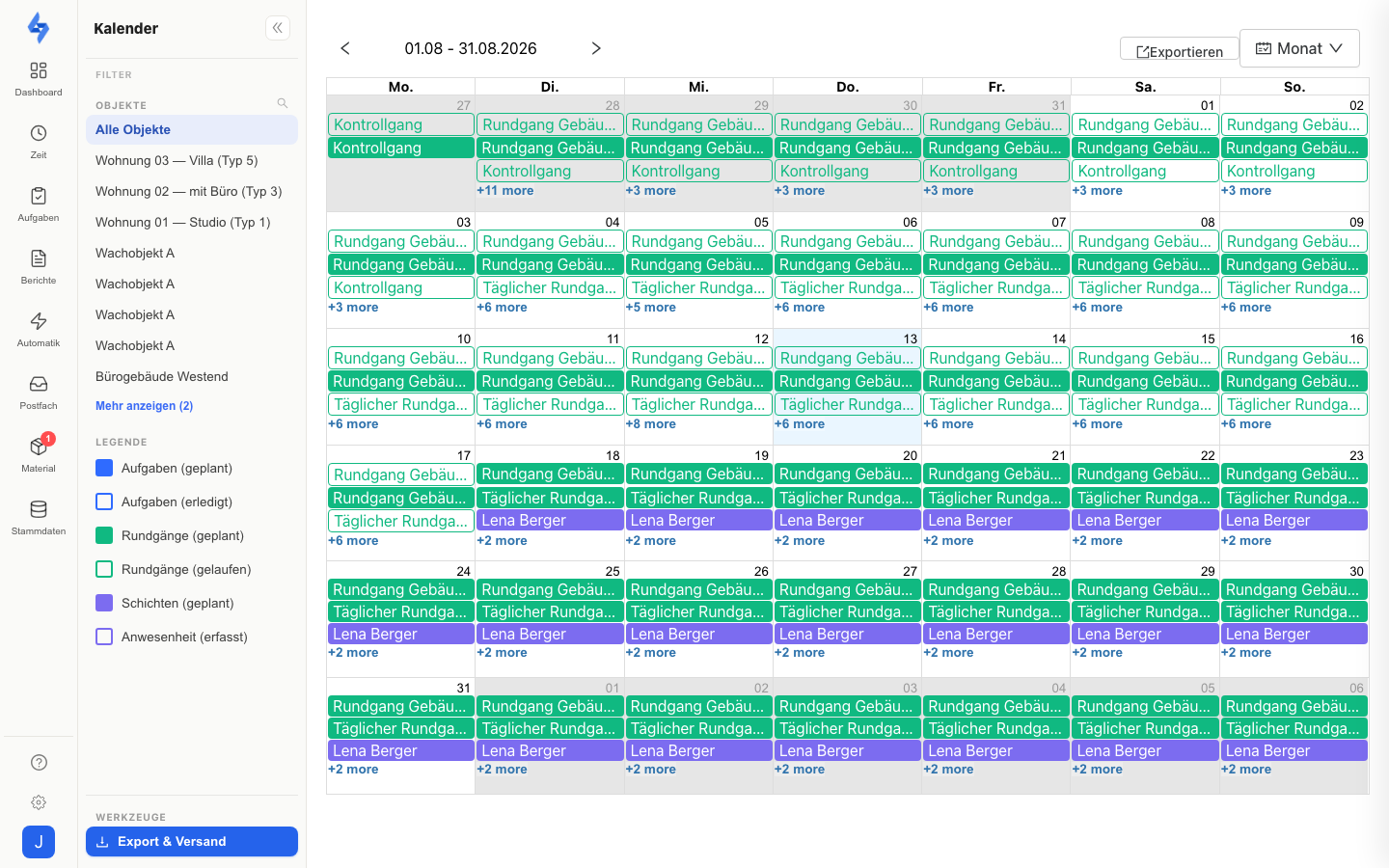
How to get there
Open the Schedule via the Schedule item in the left sidebar of the Tasks area, directly via the address /calendar, via Quick create (Ctrl+K or ⌘K — the Task and Patrol actions open the Schedule with the create panel), or via the support chat (Hannah) when you ask for the schedule.
:::info Not to be confused Time → Plan → Duty roster is the staffing matrix: who is assigned when and where? The Schedule is the outlook of tasks, patrols and tours per object; shifts appear only as a layer — clicking a shift switches to the duty roster. :::
Views
One switch in the header picks the view: Day, Week or List. ‹ Today › moves day by day (Day) or week by week (Week, Monday to Sunday). View and date are part of the address (mode=day|week|list, date=) — a shared link opens exactly the same view; the browser remembers the last view. On first opening the Schedule starts on Day.
Day
The day view shows one row per object across a time axis from 0 to 24 h. On the current day a now line marks the current time.
- Row header: the object name (click opens the object's Tasks & Patrols tab), below it the rules of the visible series in short form (e.g. "hourly 06–22", "daily") and the day's counts:
n planned · ● n missed · ○ n started · n due; entries reported as not feasible are counted separately. - Patrols and tours appear as labelled bands in the lane — one band per series, from the first to the last occurrence time of the day, with title and interval (e.g. "Night round · every 2 h 22–06"); the band's status counts sit small on the right. If a series runs past midnight, the previous day draws a dimmed band from the previous day. Clicking the band opens the rule: the object's patrol editor or the tour editor; X, Esc and Save lead back to the Schedule, day and filters are kept.
- The occurrences of a series are narrow stripes at the bottom edge of the band; their colour is the status (done, started, missed, still due). Clicking an occurrence opens the run: for patrols the patrol log in the full-height panel over the Schedule (status, planned and actual times, scans actual/target, checkpoints, person, Acknowledge), for tours the drive. Only an occurrence for which LiteLog has not yet created a run (runs are created just a few days ahead) opens the editor as well.
- Tasks appear as diamonds at their time (all-day ones at the start of the lane); a click opens the task detail over the Schedule. For a series, the drawer labels the opened occurrence with the chip "Occurrence …"; "Mark as done" books exactly that day. An occurrence that is already completed shows the green chip Done with time and person instead.
- Shifts appear as a stripe across their duration. If a target is maintained on the shift (target staff of the shift or the staffing requirement of the work order), the stripe carries the label assigned/target (e.g. "1/2"); if the shift is understaffed, stripe and label are red. A click switches to the duty roster.
- Clicking the free area of a row creates a new task: the row's object, the day and the time of the click position (half hours) are prefilled in the create panel. The cursor shows a crosshair with the hint "Click: create task here"; the function requires the Create tasks permission.
- Sorting: the default is sorting by name. The switch Missed first in the corner of the table moves objects with missed and started entries to the top; the choice applies to Day and Week and is remembered by the browser. Objects with issues carry a subtle marker on the row header in both sortings.
Patrols and tours count as missed as soon as their time window has expired — even on the current day; without an end time, from the following day. Today's task entries without evidence are still due. An entry reported as not feasible counts neither as done nor as missed.
Week
The week view shows the same rows — one object per row with its rules below the name — plus seven day cells.
- Cell: a count line
n entries · ● n missed · ○ n started · n due(a star marks one-off entries) and below it a mini bar showing the shares done · started · missed · still due. The cell's tooltip additionally counts per type, e.g.6 entries · 2 tasks · 4 patrols · 4 missed. - Hatched cell: nothing is planned for that object on that day. The tooltip says Nothing planned; the legend explains the pattern under Symbols. The option Objects without plan in the Show filter shows only rows with at least one such gap.
- Clicking a cell opens that object's entries for that day in the day panel on the right, over the Schedule; clicking the symbol ● missed or ○ started opens the same panel with those rows only. The switch All · n missed · n open in the panel header toggles between all entries, the missed ones and the started ones. The open day is part of the address (
?day=,dayProperty=): the browser Back closes the panel, a shared link opens it. - Clicking the object name switches to the day view of that object (today, otherwise the Monday of the week); clicking a day header opens the day view of that day for all rows.
Tours count at each of their stop objects. The week scales with many objects because it loads counts only, no titles.
List
The List view is the tasks list as the third view of the Schedule (/calendar?mode=list): the same table of tasks and patrol logs with filter row, due-date tabs, columns button, inline editing and list export. Tasks without a due date and reports from the app have no date and appear here only. The list's detail panels open over the Schedule; the address stays under /calendar.
:::info Old links
Links to the former presentations are rewritten on opening: the table by object (mode=table&group=property) opens the Week, the table by day (mode=table) the List, the old calendar's values view=agenda|week|month List, Day and Week respectively. The former address /tasks/list remains available.
:::
Filters
- Objects: with no selection the Schedule shows all accessible objects. The Object field sits permanently in the header and selects one or more objects; the quick picks Customer and Category next to it select all objects of a group with one click. A shared link keeps the chosen objects; objects unknown to the account are removed from the link.
- Layers: the legend in the left sidebar shows and hides the four layers tasks, patrols, tours and attendance — the Type field in the filter row does the same. Attendance is hidden on entry so the Schedule does not become a second duty roster. The legend's Symbols section explains star (one-off), check (done), red dot (missed), ring (started), dashed (still due), in the day view band (rule), diamond (task) and stripe (shift), and in the week the hatching (nothing planned).
- Filter row (funnel button): Search (title or object name), Type (multi-select of the layers), Show (week only: All · One-off · Series · Unassigned · Missed/open · Objects without plan, each with its count), Person (assignee or staffing) and, behind More filters, the niche filters Repeat (daily, weekly, monthly) and Series (one specific series in the range).
| Show | Shows |
|---|---|
| All | all entries |
| One-off | one-off entries only (due dates, ad-hoc runs) — no series |
| Series | series entries only ("what runs anyway") |
| Unassigned | tasks without an assignee and shifts without staffing |
| Missed / open | planned but without evidence — patrols and tours from the end of their time window, everything else from the following day |
| Objects without plan | objects with at least one day without an entry |
All filters live in the address. A bookmark is your saved view. In the List view the filters of the tasks list apply instead.
Create and export
Create in the header is a split button: the main button creates a task and opens the same input panel as the tasks list, with the displayed day as due date; in the day view, clicking the free area of an object row opens it too (with object, day and time). The arrow next to it opens the menu with Patrol, Tour and Attendance — depending on your permissions. Patrol and Attendance are only active when exactly one object is filtered; otherwise the entries are greyed out and the tooltip says Filter exactly one object first. Tour is not bound to an object and therefore always available; it opens the tour editor (see Manage tours). The Export button produces the task list of the visible range as PDF or CSV (and, if exactly one object is filtered, for that object only) or schedules the export in Export & delivery.
Good to know
:::tip Note
- The Schedule loads at most a few thousand titled entries per layer. If that is not enough for the range, the hint More entries than can be shown appears with the action Select an object or customer. The week's counts are unaffected.
- Tours are not bound to one object: they appear in the row of each of their stop objects, and in the object filter at each of their stops.
- Customer accounts do not see the Schedule; they are directed to the customer portal. Accounts with a customer assignment see only entries of their accessible objects.
- The Schedule shows "missed" from the end of the time window; the "Overdue" tab of the list counts the same run only from the following day and only within the last 7 days or the selected date range.
- You do not staff shifts here but in the duty roster — there the object axis shows the demand per object and day. :::
Permissions
:::info Permission The page is available as soon as you hold one of the permissions View tasks, View time tracking or View patrol evaluation. Layers without read permission are hidden server-side; the List view requires View tasks or View patrol evaluation. :::
| Action | Permission |
|---|---|
| See task layers | View tasks |
| See patrol layers | View patrol evaluation |
| See tour layers | Plan tours: view |
| See shift/attendance layers | View time tracking |
| Create task (button or click in the lane) | Create tasks |
| Create attendance | Create time tracking |
| Create patrol or edit rule | Create / edit preset round settings |
| Create tour | Create tours |
| Acknowledge patrol run | Edit preset round settings |