Order detail page
Clicking a row in the order list opens the order's detail page. It is a proper sub-page with its own address — you can share it as a link, and the back arrow returns to the list.
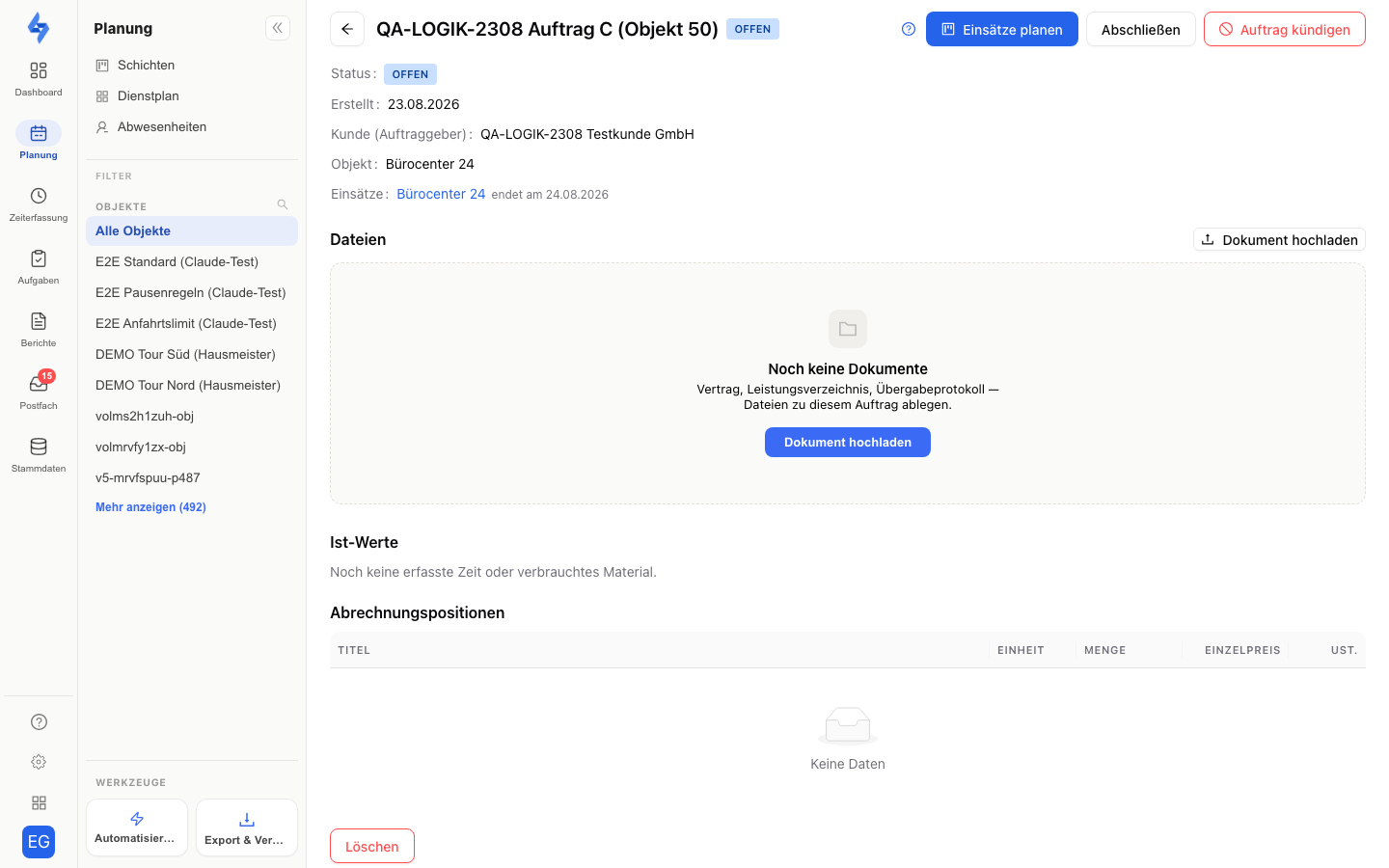
Header: title, status, actions
The page header shows the order title with the status tag (Open, Completed, or Billed). On the right are the actions — depending on the status:
- Open: "Plan shifts" (opens the shift dialog of the planning calendar with the order prefilled), "Complete", and — as long as not cancelled — "Cancel order".
- Completed, not yet approved: "Reopen" and "Approve".
Below, the master-data overview lists the status, the created date, if applicable the completed date and approval ("Approved on …"), customer (client), property, description, and the linked task ("Open task", with "done on …" once the task is finished).
Linked shifts
The "Shifts" row shows all shift series from the duty roster that are linked to this order — each with "next date …". Clicking an entry jumps into the duty roster, filtered to the property and the date of the shift.
At the end of each series sit two small icons for the series lifecycle:
- Stop icon ("End series") — ends the series on a day of your choice; it then shows "ends on …" or "Ended …".
- Play icon ("Resume series") — resumes an ended series.
Files on the order
The "Files" section stores documents directly on the order — the empty state names the typical candidates: "Contract, service specifications, handover protocol". The upload offers the switch "Show in the app": when enabled, employees see the file in the LiteLog app on the order's property.
:::info In-app visibility needs a property If the order has no property, the switch stays locked: "The order has no property — without a property the file cannot be shown in the app." Assign a property to the order if the documents should reach the team on site. :::
Service schedule
If the order has service positions, the service schedule shows a matrix of service × Mon–Sun: which service is covered on which weekday by a linked shift?
- Check mark — at least one series covers the day: it carries the position's service type as its target, and its rhythm reaches the day (daily, or weekly with a matching weekday).
- Warning icon — "Planned day — no shift covers it." Here is a gap between agreement and planning.
- Dot — the day is planned, but the position has no service type: "Not verifiable without a service type — set one on the position."
The "Window" column shows the position's planned time window; a stored note appears as a tooltip. Monthly and one-off series deliberately do not count as coverage — they guarantee no fixed weekday.
If your client's service specifications exist as an Excel file, you do not have to create the positions by hand: the "Import specifications" button in this section starts the service specifications import — it reads the file with AI and creates positions, task series, and form templates in one step.
Staffing requirements
If requirement lines were created when recording the order, the Staffing requirements table lists per line the days, the window, the staff (e.g. "2 staff members"), and the required qualification — the documented target for staffing the shifts. Whether the planned shifts are sufficiently staffed also shows in the order list: its "Planning" column warns with "… understaffed".
Actuals
The "Actuals" section automatically collects what has already been delivered on the order: recorded time per service type (in hours, possibly with quantity and unit) and consumed material with its unit price. As long as nothing is recorded, it reads: "No recorded time or consumed material yet."
Billing positions
The table shows all positions with Title, Unit, Qty, Unit price, and VAT. Effort-based positions show "by effort" instead of a quantity — they are only quantified on completion. After completion a note reminds you: invoice hand-over (e.g. Lexoffice) is prepared, the positions are stored net with unit, unit price, and tax rate.
Completing an order
- Click "Complete" in the header.
- The "Complete order" dialog shows all positions: "Effort-based quantities are prefilled from recorded time and consumed material — adjustable before finalising."
- Adjust quantities and unit prices if needed; the "Net total" at the bottom recalculates live.
- Confirm with "Complete" — the order moves to the Completed status.
Cancel, approve, reopen
- Cancel order — you pick the last day of execution and whether employees are notified. All linked shifts end on this day; individual series can be resumed later via Play. Series that already have check-ins after the cut-off date remain and are reported — end them individually via "End series" if needed.
- Approve — freezes a completed order for good: "Changes to the order will be locked afterwards."
- Reopen — brings a completed, not-yet-approved order back to the Open status. The completion snapshot of the positions remains and is overwritten on the next completion.
- Delete — only for open orders, with a confirmation prompt ("Delete order?").
:::info Who may do what? Completing, cancelling, approving, and reopening require the permission to update customers; deleting requires the customer delete permission. "Plan shifts" and "Resume series" follow the roster permissions, "End series" the roster delete permission. Amounts are only visible to roles with customer read access — your client sees their orders in the customer portal via the Work orders feature. :::