Material & Equipment (Master Data)
Under Master data → Material you maintain the tenant-wide item catalog of the Material feature — the single list of items that property stocks, warehouses and issues to persons all rely on. Here you create items, choose their kind, and manage the units with serial numbers for serialized items.
Navigation: Master data → Material (area "Item catalog")
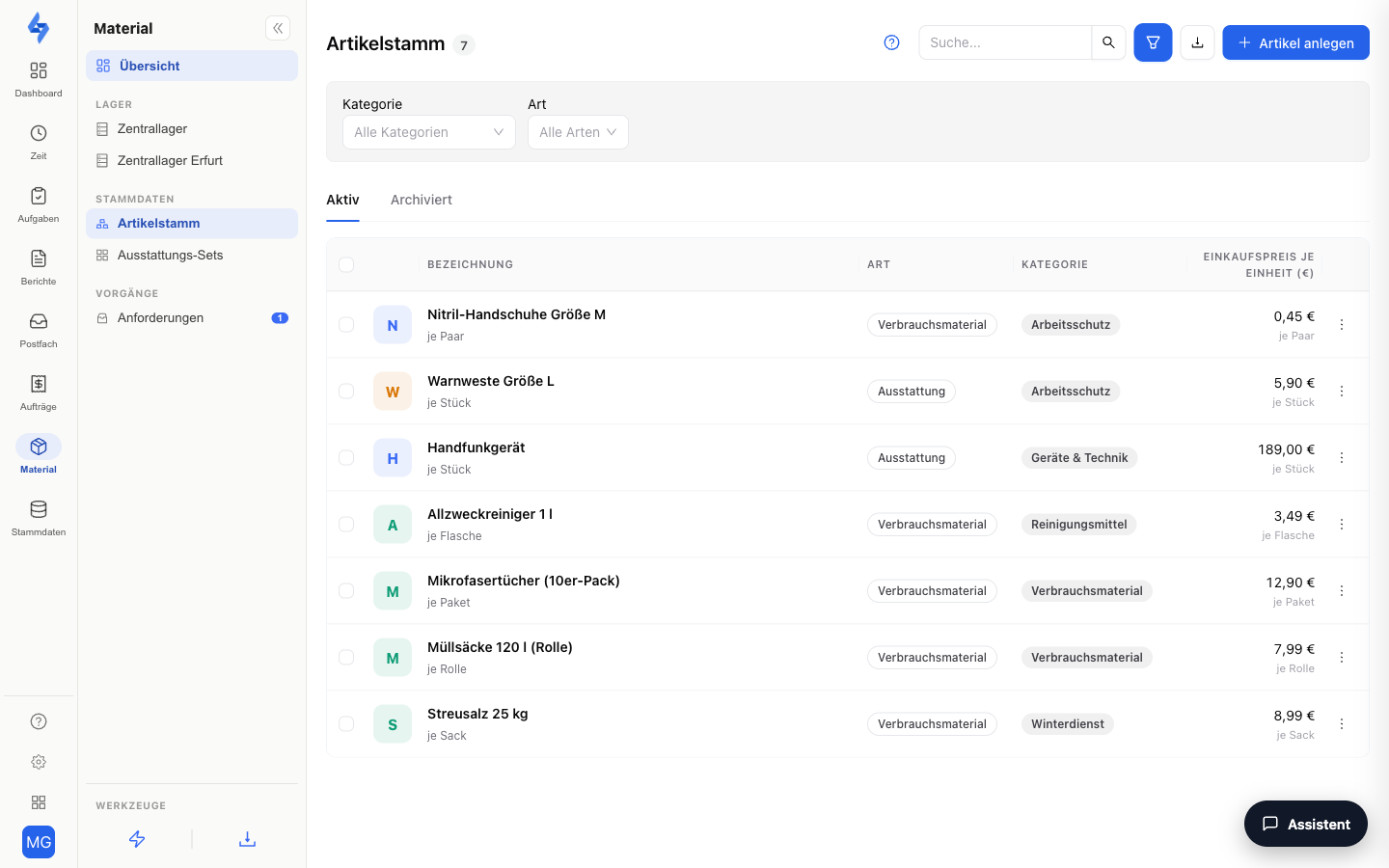
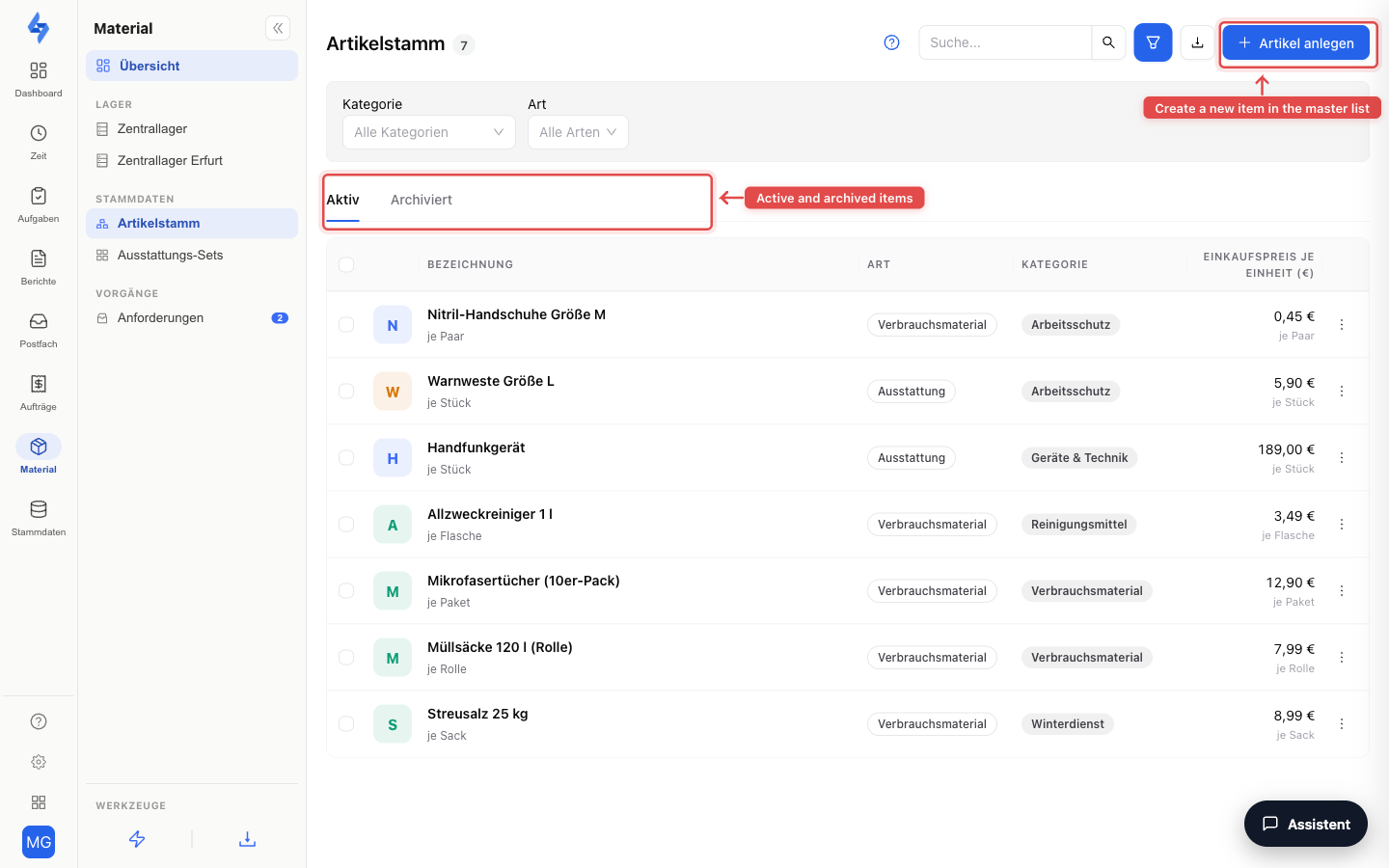
Item catalog
Per item you maintain name, unit, category and the purchase price per unit — plus, optionally, a sales price and tax rate for rebilling customers via LiteBill. The purchase price is locked in with every booking — later price changes never rewrite past reports. The pickers for categories, units and sizes are maintained centrally under Settings → Catalogs → Material; the item form links straight there.
In addition, the item form supports custom fields (e.g. manufacturer number, inspection date, hazardous goods): via Add field you define a field with a type (short text, multi-line text, number, date, choice, yes/no), a required flag and an order — it then appears in every item. The values are shown on the item detail page under "Custom fields" next to the master data — visible to everyone who may see the item; creating and changing the fields stays with the "Settings" permission.
When creating an item you choose its kind — it determines how stock and issuing are managed and is fixed after creation:
| Kind | Meaning |
|---|---|
| Consumables | Consumed and refilled — stock runs via quantities per property or per warehouse (as before). |
| Equipment | Equipment by quantity, e.g. workwear — issued to persons without serial numbers. |
| Serialized units | Individual units with serial numbers, e.g. radios, machines or keys — every unit is tracked individually. |
Archive instead of delete: an archived item disappears from all selection lists; stock and booking history are kept. Use the Active / Archived tabs to switch views.
Sizes & variants
Equipment often comes in several sizes — gloves, jackets, safety shoes. For this the item form carries an optional field:
- Size — picked from the sizes maintained under Settings → Catalogs → Material. An item with a size appears everywhere as "Name (size)", e.g. "Gloves (M)".
Every size is an item of its own with its own stock, its own bookings and its own price. The quickest way to add further sizes is the "Create in another size" action in the row menu of the item list: it opens the form with the master data taken over, and you only pick the new size. The combination of name and size must be unique — the portal rejects a second active item "Gloves (M)".
Units (serialized items)
For items of the kind Serialized units, the "Units" action opens the management of the individual devices:
- Create serial number — a unique number per unit (e.g. "WJ-2024-014").
- Assign NFC chip — paired by scanning in the LiteLog app; the portal only displays the paired chip ID. Retiring a unit releases the chip again.
- Print QR labels — a PDF with labels to stick onto the devices; every unit can then be identified in the app by scanning.
- Status per unit: Available, Issued (showing the holder), Lost, Retired.
- Conflict indicator: if two devices (e.g. offline) book the same unit contradictorily, the portal marks the unit with "Contradictory bookings" — resolve it with a correction booking.
Equipment kits
In the "Equipment kits" area (Master data → Material) you create templates for recurring issues — for example the standard equipment for new employees or the "site manager equipment". A kit consists of:
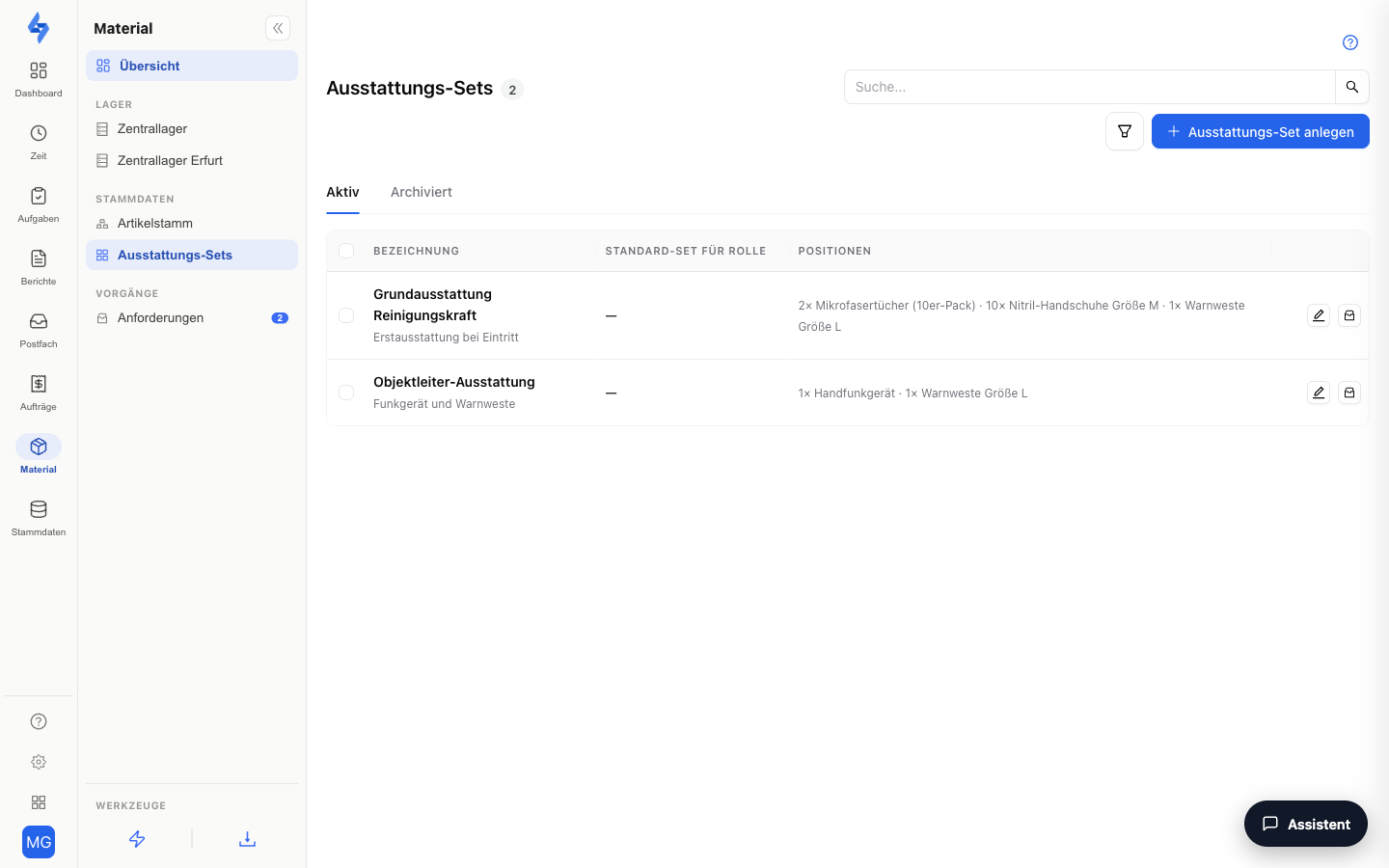
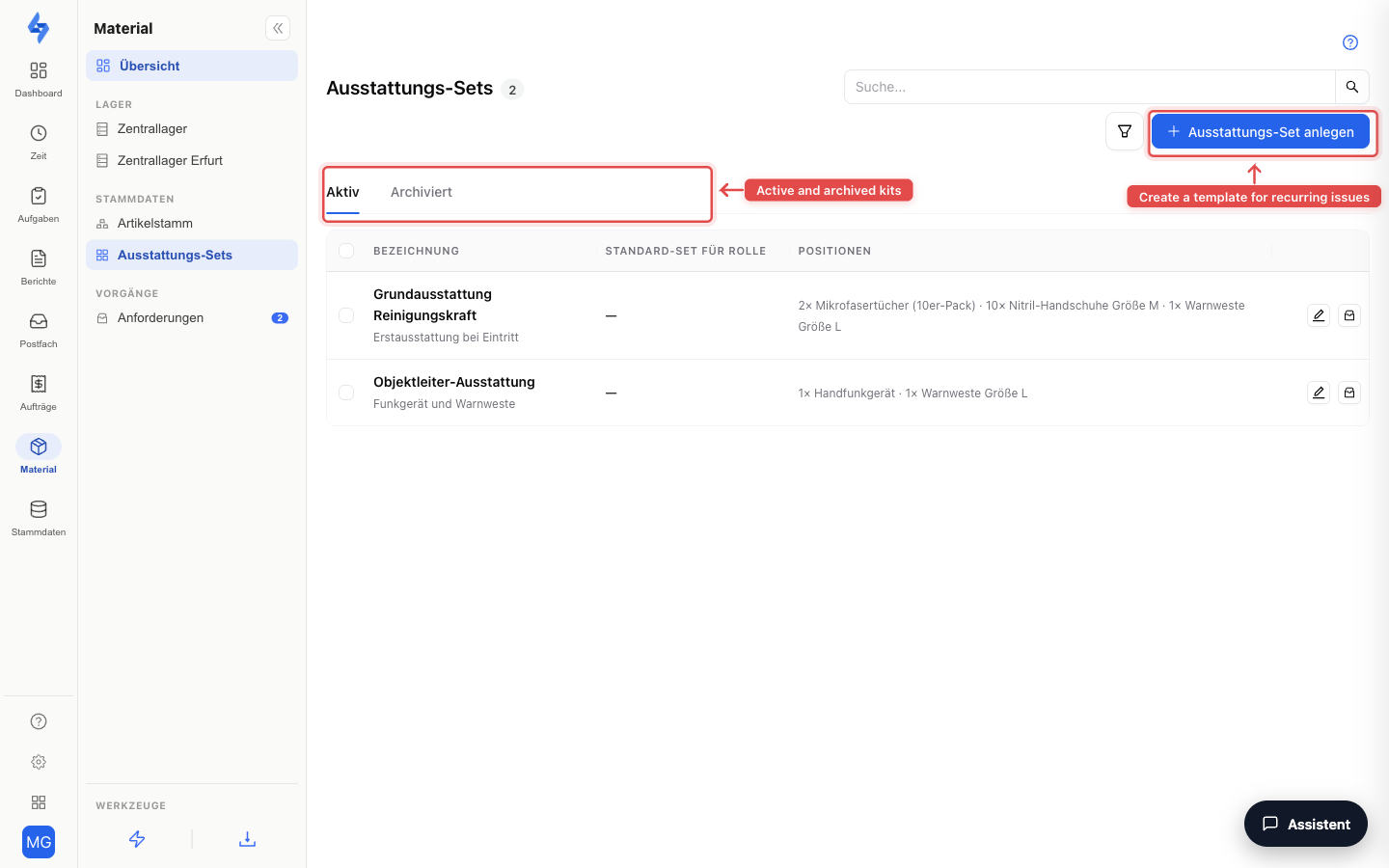
- a name and an optional description,
- line items — one item with a quantity per line,
- optionally "Default kit for role" — when issuing to a person with this role, the kit is preselected in the issue dialog.
Kits never book anything themselves. They merely prefill the issue dialog: in the "Issue to person" dialog (at the property as well as on the equipment account) you pick the kit in the "Equipment kit" field — the line items are filled in and remain fully editable before booking. For serialized items the choice of the specific unit (serial number) always stays manual; line items with items that have since been archived are skipped when prefilling. Kits can be archived and restored; existing issue receipts are not affected.
Central warehouse & requests
Next to the item catalog sits the "Central warehouse" area — the warehouse stock without a property reference; if your tenant runs several warehouses, you switch between them there via the warehouse picker and move stock with "Transfer". Beside it, the "Requests" tab is the approval inbox for material requests. Both are described in the chapter Material (property) (sections "Warehouses" and "Requests"); the warehouses themselves are created under Settings → Catalogs → Material.
Good to know
:::tip Note
- The kind of an item is fixed after creation — it determines whether it runs via property stocks or is issued to persons. When in doubt, create a new item with the right kind and archive the old one.
- You manage stock per property on the property's Material tab; what has been issued to persons is shown on the employee's equipment account.
- A newly created item can be booked immediately at every property and in every warehouse.
- The Material feature as a whole has a tenant-wide company switch under Features — as long as it is off, this area does not appear at all. The page Material (overview) gives an overview of all building blocks. :::
Permissions
:::info Permission To open this page, you need the permission View material stock. Contact your administrator if you do not have access. :::
| Action | Permission |
|---|---|
| Open the page, see items and units | View material stock |
| Create/edit items, manage units, teach in NFC chips | Manage material catalog |
| Archive items, retire units | Archive material items |