Duty Roster (Matrix)
The Duty Roster (menu item Time → Plan → Duty roster) is the staffing view of planning: a matrix with the days as columns and your properties (default) or people as rows. Each cell contains the day's assignments as compact cards with time, name, and staffing. The page answers the question of the morning staffing round at a glance: Where is someone still missing this week — and who is assigned where?
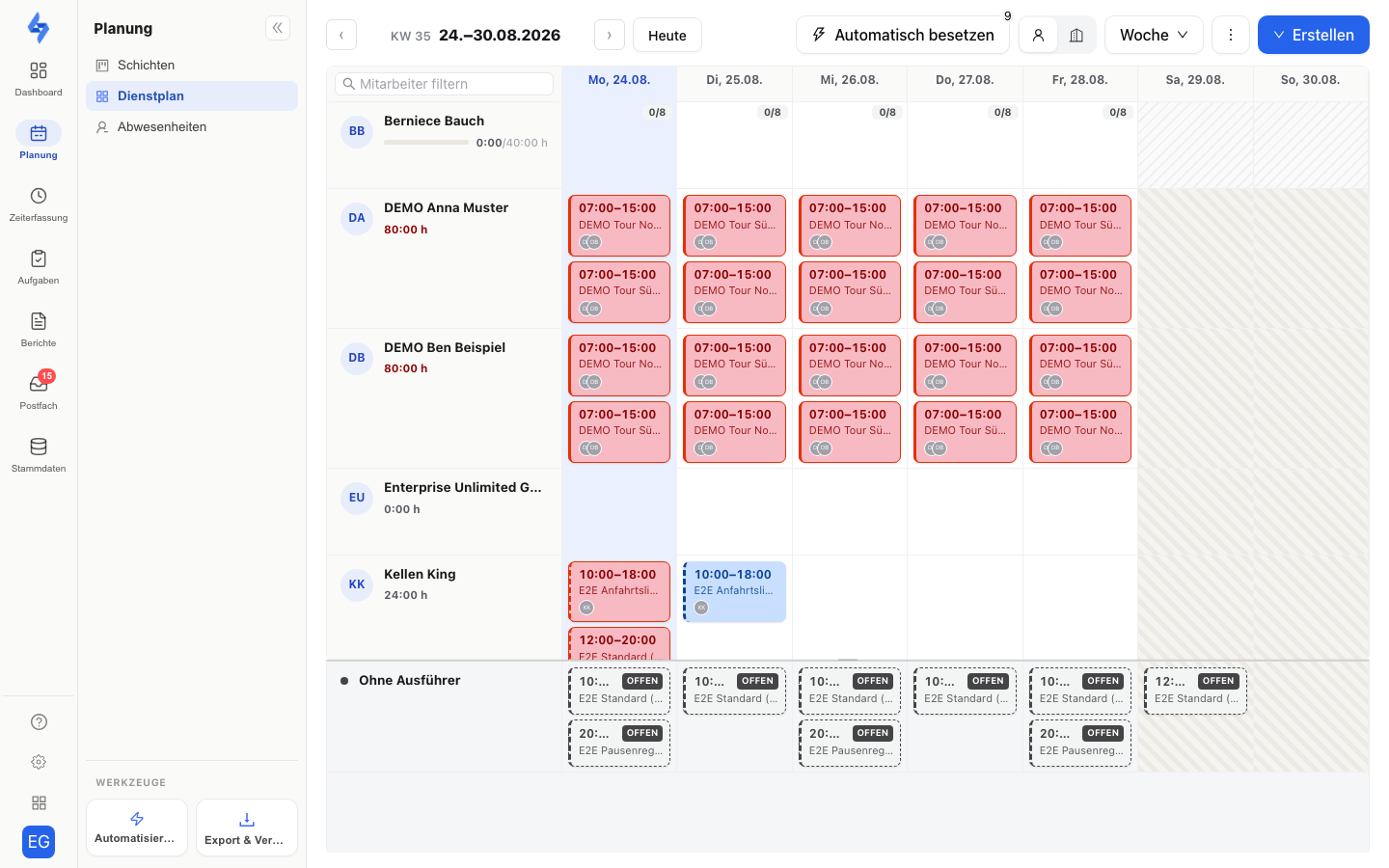
:::info Two lenses, one data base Time → Plan → Shifts plans the what and when (calendar with templates, series, and import) — the duty roster plans the who. Both pages show the same assignments; clicking a card opens the same shift dialog. Calendar details: Planning Shifts. :::
Axes & Period
- Axis switcher "Properties" / "People" — Use the two icons in the header to choose the row axis: Properties (default) shows demand and staffing per property and day (see Demand per property and day), People the team's workload and availability.
- Period "Day" / "Week" — The default is the ISO calendar week (Monday to Sunday). For fine planning, switch to a single day; the metrics in the row header stay week-based.
- Paging — The arrows move to the previous or next week, "Today" jumps back. The header shows the calendar week (e.g. "CW 35") and the date range.
Axis, period, and date are stored in the URL (matrixAxis=person, matrixRange, date; the default property axis is not part of the address) — the link can be shared and opens the matrix for the recipient with the same settings. The property filter of the left sidebar applies here too; in addition, the table corner filters the rows (employees or properties), on the people axis also by custom attributes.
Demand per Property and Day
On the property axis every cell with demand carries an indicator "assigned/target" (e.g. "1/2"): green when the target is met, amber for partial staffing, red when nobody is assigned. The tooltip names the source of the target.
- Where the target comes from — per shift, its own Target staff setting applies first, without it the staffing requirement of the linked work order, otherwise the required check-ins (including inheritance from the shift defaults). The day's demand is the order target plus the sum of the shift targets; a shift that already takes its target from the order is not counted twice. No maintained target = no indicator — days without demand stay neutral.
- "Shift missing" — if there is demand on a day but no shift of the property is planned, the cell shows a red dashed placeholder. A click creates the shift (future days only).
- Edges on the card — an unassigned shift carries a red left edge and the OPEN chip, a partially staffed one an amber edge and the counter "1/2".
- Row header — next to the property name the weekly sum "Demand n · assigned m" appears, red when there is a gap; it shows only when at least one day carries a target.
Weekly Hours Header on the People Axis
Next to each name you see the sum of planned hours for this week, and — with a work schedule on file — as a ratio to the contract hours (e.g. "32 h /40 h"). You spot over- and underload without doing the maths.
Assigning a Shift
- Clicking a card opens the shift dialog — where you assign the staffing (past or started assignments open read-only).
- Dragging a card onto another person row changes the staffing directly in the matrix. A dialog asks for the scope: "Only this order", "Until and including …", or "Indefinitely (whole series)". Assignments with recorded check-ins remain unchanged.
- Clicking an empty cell creates a new assignment — on the property axis, day and property are pre-filled. Creation is blocked in past cells.
- Context menu "Mark as absent" removes a person from the staffing for this date only — with multiple staffing, the rest remains. Record longer absences as an absence.
- The "Create" dropdown creates a one-off assignment, a recurring shift (series), or an absence.
Multi-Select (Bulk Actions)
The three-dot button in the header activates multi-select: click assignments to mark them — a floating bar shows the counter and two actions:
- Change staffing — add or remove people for all marked assignments. The change applies only to the selected assignments; with assignments across several properties, people without a property assignment are skipped.
- Cancel shifts — cancels the marked assignments. The "Notify employees" checkbox controls whether the assigned people are informed.
Assignments with already recorded check-ins are skipped for both actions and reported individually.
Absence Band
On the people axis, a continuous band marks days with an approved absence — neutrally as "Absent", without type or reason (data protection). This way you immediately see who is unavailable while assigning; clicking the band opens the detail view.
Status Colours and Conflict Hints
The cards of the matrix (and the calendar) know exactly three colours — the colour encodes the state, the hint on the card names the reason:
| Colour | Meaning |
|---|---|
| Blue | Fully planned assignment |
| Red (conflict) | An assigned person is absent on this day, has another overlapping assignment (double booking) — or a working-time hint applies: less than 11 hours rest before or after an adjacent assignment, more than 10 hours of work on this day, or more than 48 hours in this week |
| Grey | Without assignee (with the OPEN chip and a red left edge) as well as past or cancelled assignments (struck through or dimmed) |
Partial staffing is not a card colour of its own but an amber edge plus counter: the card shows "X assigned / Y required", the cell of the property axis the indicator "X/Y" (see Demand per property and day). Series exceptions are marked by a dashed instead of a solid bar (shape, not colour).
The "Without Assignee" Row
At the bottom edge, the "Without assignee" row collects all unassigned assignments of the visible period — the fastest overview of what still needs to be distributed. Its height can be adjusted at the divider. Drag a card from this row onto a person row to staff it — or leave the distribution to auto-assign.
:::info Copy week To reuse a proven week, use "Copy week to …" — the function sits in the dropdown menu of the operations calendar (week view only). It copies staffing and individual assignments of the displayed week to one or more target weeks; a preview shows in advance what will be updated, newly created, or cancelled. :::
Auto-Assign
:::info Plan Shift planner automation — auto-assign, stand-in suggestions, and copy week — is included from the Standard plan; see Choose a plan. Assigning and reassigning by hand works in every plan. Accounts created before the changeover keep their previous scope. :::
The "Auto-assign" button (with a counter of open assignments) computes a staffing proposal for all unassigned assignments of the visible period. The proposal opens in a side panel: for each assignment the suggested people — with a qualification tag on the suggestion where the demand requires one. You review the proposal and apply it fully or partially; nothing changes in the plan until you apply.
What the Automatic Assignment Takes Into Account
Auto-assign never schedules anyone against the rules the matrix itself displays:
- Absences & vacation — anyone with an approved absence on the assignment day is not suggested.
- Working time law — the 11-hour rest period plus the daily and weekly limits. Not only already planned assignments count, but also recorded actual times: someone who worked through the night does not get an early shift placed into their rest period.
- Qualifications — if the staffing requirements of the linked work order demand a qualification (e.g. "2 staff with certification"), auto-assign only suggests people who have that qualification assigned. With mixed demand ("2 qualified + 1 any"), the slots are distributed accordingly.
- Contractual weekly hours — the weekly hours of the work schedule are a hard limit: auto-assign rather leaves an assignment unstaffed than plans a person beyond their contractual target. People without a work schedule have no contract limit.
- Shift defaults — series that inherit their target staffing are planned with the actually effective value from the property's shift defaults or the main settings.
- Time account & fairness — as soft goals: people with little planned time or minus hours are preferred, and assignments are distributed evenly. Soft goals never break any of the hard rules.
:::info One target number for everything The target staffing of an assignment comes from the shift setting Target staff — without it, from the staffing requirements of the linked work order, otherwise from "Required check-ins" (including inheritance). The traffic light "X of Y staff assigned", auto-assign, and the substitute suggestion for absences all use the same target number — what the matrix marks as understaffed is what auto-assign tries to fill. :::
When an Assignment Stays Unstaffed
If auto-assign finds no admissible person, the assignment remains in the proposal as "Not staffable" — with a reason:
- "Missing qualification" — the demand requires a qualification that no available person holds. The proposal shows, per qualification, how many slots remain open.
- "Contractual weekly hours exhausted" — every eligible person would have exceeded their weekly contractual target with this assignment.
- In addition, a breakdown of the excluded people (e.g. "3× absent, 2× missing qualification, 1× rest period") names why the staffing fails — so you immediately see whether an absence, a missing qualification, or working time law causes the gap.
:::tip Rather unstaffed than against the rules An empty slot in the proposal is not an error but a statement: with the hard rules (absence, working time law, qualification, contract hours) it does not add up. Staff the assignment deliberately by hand — or adjust the demand, qualifications, or work schedules. :::
Package note: schedulable employees
In the entry-level package, the number of schedulable employees is limited — counted are the distinct people assigned to future (non-cancelled) assignments. The toolbar shows the usage as a "n of m" chip (e.g. "3 of 5") with a small progress bar, as the last element before the create action; on hover the tooltip names the quota ("Roster: schedulable employees") and from which plan it grows, including the monthly price. From 80 % usage the chip turns amber, at the limit red. With an unlimited quota no chip appears. Once the quota is reached, no additional person can be newly scheduled; the upgrade dialog opens on the attempt — or on a click on the red chip. Swapping one person for another remains possible, and anyone removed from all future assignments frees their slot immediately. All other planning features remain available regardless.
Permissions
| Action | Permission |
|---|---|
| Open the duty roster | View time tracking |
| Create assignments | Create time tracking |
| Change staffing, multi-select | Edit time tracking |
| Cancel assignments | Delete time tracking |