Work orders
A work order is the bracket around everything you do for a client: it connects the customer, optionally a property, the agreed services (as billing positions), and the shifts in the duty roster. The chain always runs in the same direction: record the order → plan shifts → record time and material → complete the order.
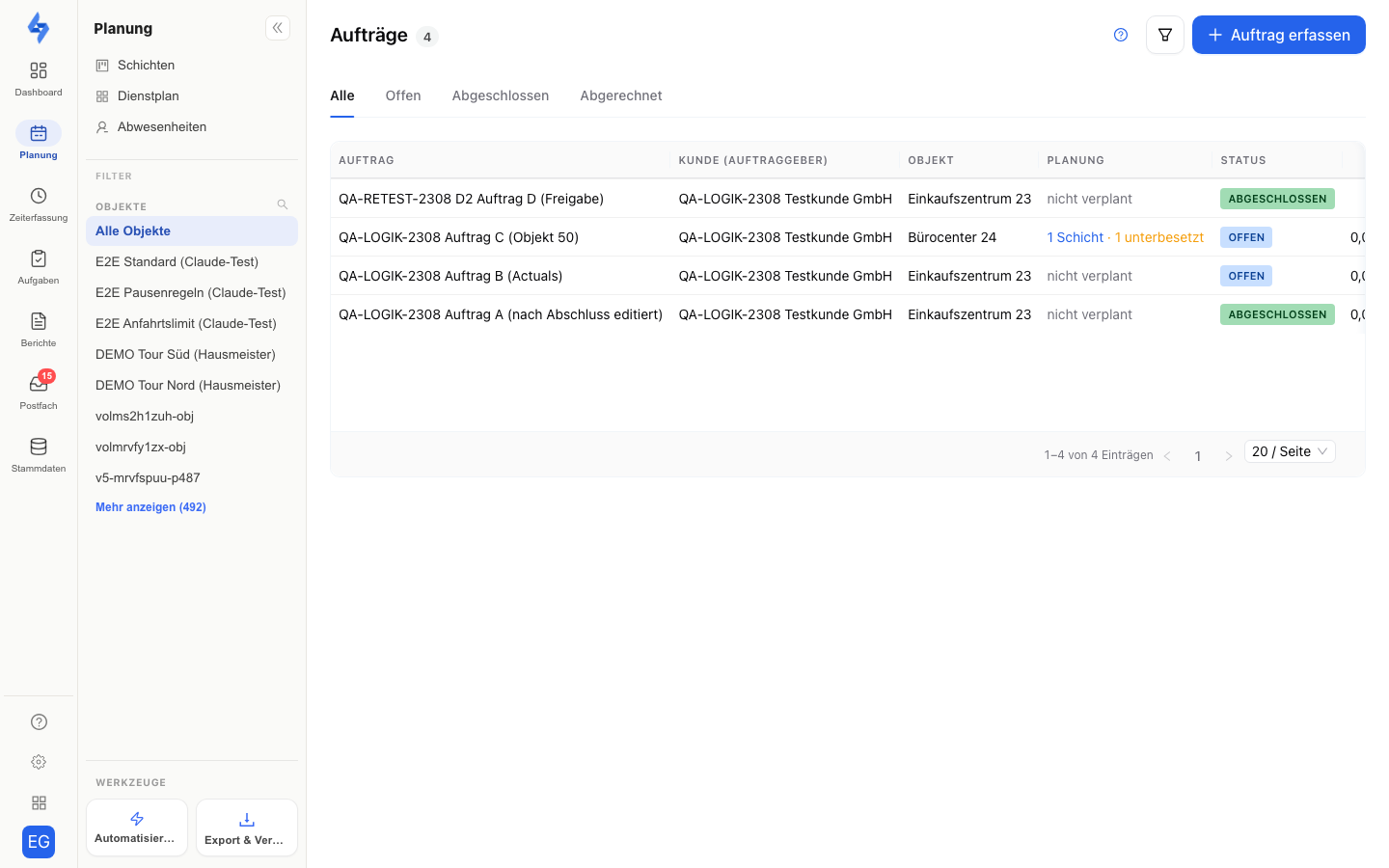
You find work orders in the menu under Orders → Customer orders (address /planning/work-orders; old links to /attendance/work-orders redirect). The Orders menu follows the order chain: customer order, offer, order confirmation, then delivery note, invoice and cancellation, and finally the articles. The shift planner is called Shifts and lives under Time.
:::info Prerequisites Work orders are part of the billing track. The menu item only appears if
- your plan includes work orders — they are unlocked from the Standard plan (see Choose a plan),
- your account includes the LiteBill package (orders & invoices), and
- your role has customer read access — orders carry prices and therefore belong to the "Customers" permission area.
Without the package, the "Planning" menu item leads straight to the shift planner. :::
What is a work order for?
Without an order, shifts are just appointments. With an order, every shift knows who it is for, what was agreed, and what it costs:
- Billing positions record services, material, travel, and custom items with unit, unit price, and tax rate — net, prepared for invoice hand-over (e.g. Lexoffice).
- The service schedule checks per weekday whether a planned service is covered by a shift. If it exists as an Excel file, the service specifications import turns it into positions, task series, and form templates with AI, in one step.
- Actuals automatically collect recorded time and consumed material on the order.
- On completion, effort-based positions are filled from the actuals.
How to create an order is described in Record order; every section of the detail page is explained in Order detail page.
The status lifecycle
Every order carries one of three statuses:
- Open — the order is running. You can plan shifts, store files, and complete or cancel it.
- Completed — the positions are finalised with their definitive quantities. As long as the order is not yet approved, you can Reopen it or freeze it for good via Approve.
- Billed — the order has moved into billing.
Two states run alongside the status:
- Approval — after clicking "Approve", changes to the order are locked; the detail page shows "Approved on …".
- Cancellation — "Cancel order" sets a last day of execution. Until then the list shows "runs out …", afterwards "Ended". The status itself initially stays "Open".
The order list
The list shows the columns Order, Customer (client), Property, Planning, Status, Net total, and Recorded for each order. Clicking a row opens the detail page; the browser's back button returns to the list.
Status tabs
Above the table, the tabs All · Open · Completed · Billed filter by status. The selected tab is part of the URL — the view can be shared as a link.
Search and filters
The filter icon in the page header opens the filter bar:
- Search — free text across the orders ("Search orders …").
- Customer — a select with server-side search, defaulting to "All customers".
- Property — the shared property filter.
All filters combine with the active status tab. "Reset filters" clears the search and both selects in one step.
The "Planning" column
The column shows how many shifts in the duty roster are linked to the order — for example "3 shifts" — or "not scheduled". If shifts are short of staff, the column adds a warning such as "1 understaffed". Clicking the entry jumps straight into the duty roster, filtered to the order's property.
:::info Prices require customer read access The "Net total" column only shows amounts if your role may read customers — otherwise it shows "—". An order without any positions shows 0.00 € with the tag "no positions". :::
How order, shifts, and roster interact
The order is the head of the planning chain in the Planning menu:
- Work orders — the what and for whom: agreement, positions, status.
- Shifts (planning calendar) — the when: this is where shift series are created; "Plan shifts now" opens the shift dialog with the order already prefilled.
- Duty roster — the who: staffing the shifts with employees.
Every shift created this way stays linked to the order: the detail page lists the series, the service schedule checks coverage, and cancelling the order ends the linked series with it.
Your client's view
Your customer can see their orders too: the customer portal has its own Work orders feature (at /portal/work-orders) that you enable per customer access. The customer only sees their own orders there — your internal planning and your employee data stay hidden.